GuidesConnect your accounts
MCP servers
Give Claude access to other tools, like Notion, Linear or your database.
An MCP server connects Claude to another tool, so a build or the Design chat can read from it: content in Notion, tickets in Linear, data in a database. Figma has its own page: Connect Figma.
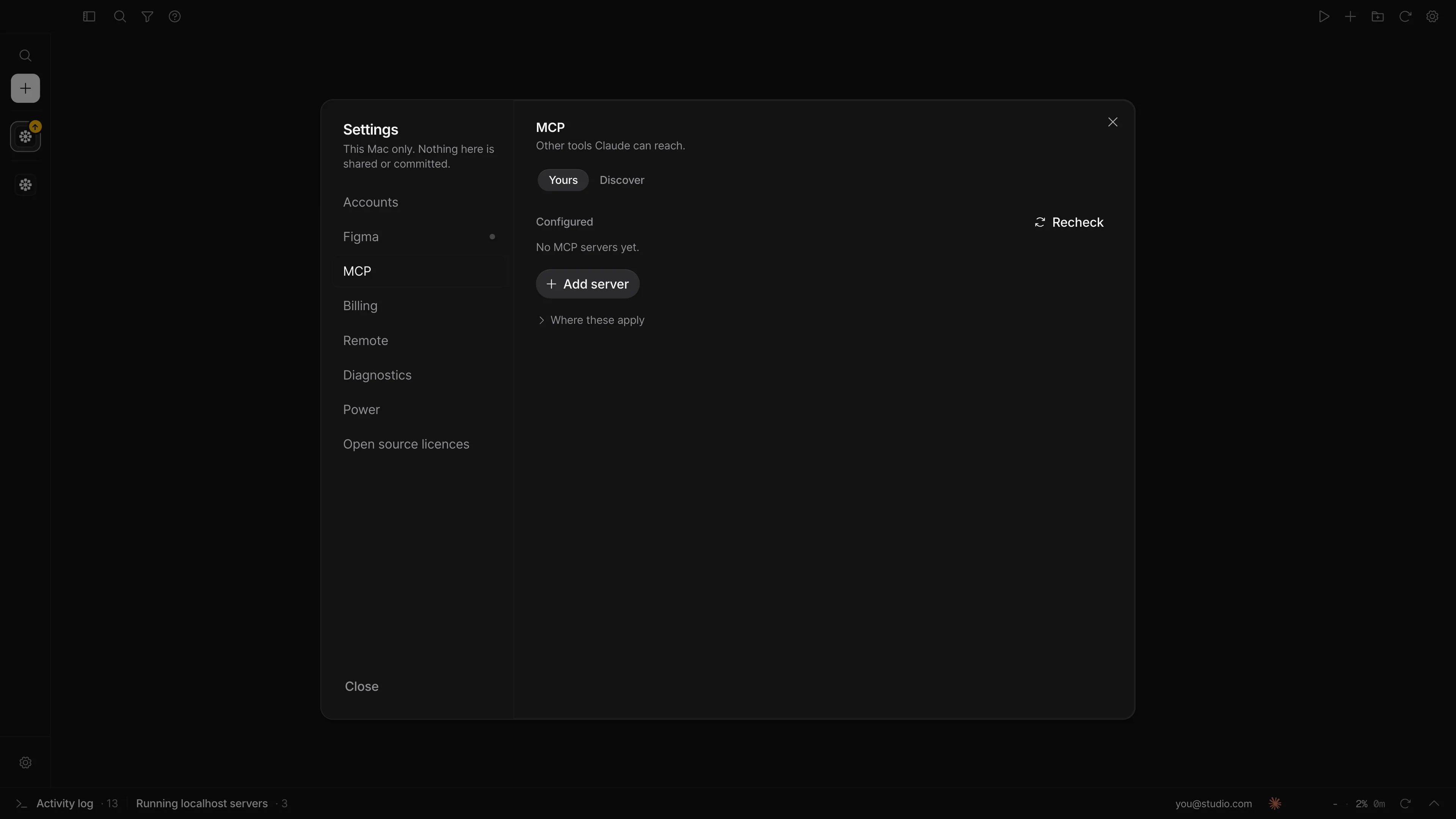
Add a server
- Open Settings → MCP.
- Yours lists the servers this Mac already has. Switch to Discover for every connector Claude offers, each with its mark, and pick one to add it.
- If the server needs it, click Authorise and approve in your browser.
- A server that is not in Discover can be added by its address with Add server.
A server shows Connected when it is ready. Recheck asks every server again.
In the Design chat, type @ to use a server: the list shows this Mac's servers first, then Discover's, and picking one there adds it.
Good to know
- A server you add works in every project on this Mac, through your Claude account.
- Builds run on their own, without asking for permission. A server that only reads is safe; think twice about one that can send or change things.
- Servers you connected on claude.ai appear here as via claude.ai, and can be authorised from the list. Ones not connected yet fold under one line.
- Remove stops offering a server to devlooper; nothing changes in the tool itself.