Guides1. Create a project
The Hub and your projects
Find, open, group and tidy your projects in the Hub's sidebar.
The Hub is the main window. Your projects are listed on the left; the open project fills the rest. With no project open, it offers Set up with Agent to start a new one (see Create a project).
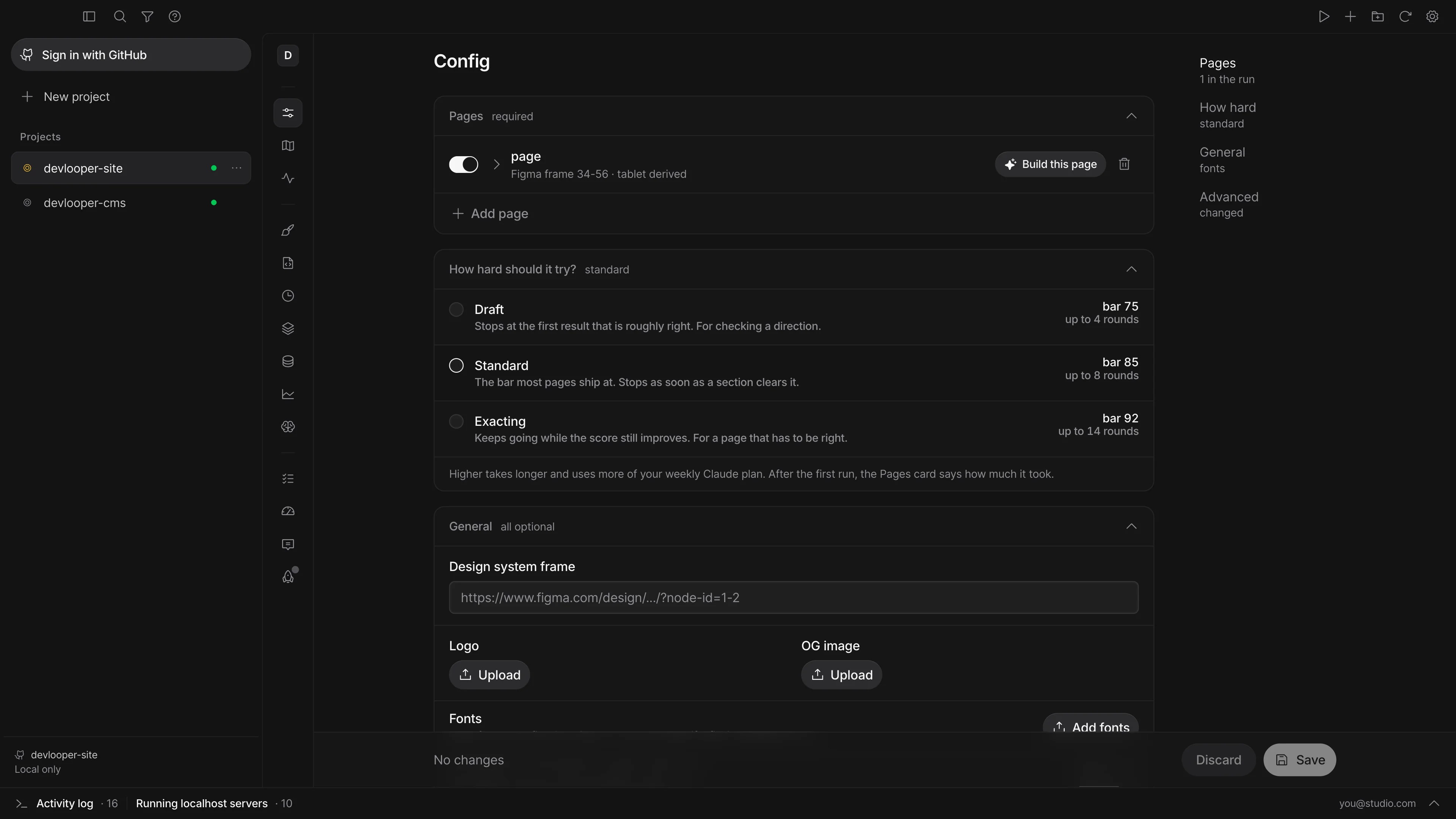
The projects sidebar
- Open a project: click it.
- Status dots: green = the last build passed, amber = finished below the bar (run again), red = failed or folder not found, gray = no build yet. The number is the last build's score out of 100.
- Arrows: ↓ your team sent changes you do not have yet, ↑ you have work not sent yet.
- Groups: projects are grouped by the GitHub account or organization that owns them. Local holds projects not on GitHub yet. The menu at the top of the list picks which organization you see; All organizations is the default, and a new project goes to the one picked.
- Folded sidebar: Hide sidebar in the top bar folds the list to a narrow rail. The + on it starts a new project, the gear opens Settings, and the project you are in and a project with a build running look different.
Not sure what an icon means? Click ? in the top bar.
Find and sort
- Search projects (the magnifier) filters by name, including projects in folded groups and folders. Esc clears it.
- Sort, filter & group (the funnel) sorts by recent, name or status, shows only failed or running projects, and groups by organization, status or technology.
- The line above the list says when something is hidden; Clear shows everything again.
Organise
- Folders: hover a group and click New folder. Drag projects into it.
- Pin to top: right-click a project.
- Move to Archive: right-click a project you are not working on. It frees disk space; nothing you made is touched. Move back to the list brings it back.
- Select several projects with ⌘-click or Shift-click, then right-click to act on all of them.
Folders, pins and the archive are kept on this Mac only.
The project menu
Right-click a project, or click ⋯ next to it:
| Stop run | Stops a build that is running |
| Copy path | Copies where the project is on your Mac |
| Turn off | Closes the project and stops what it runs in the background. Opening it again starts it. |
| Publish… | Opens the Publish panel |
| Duplicate… | Makes a full copy, on this Mac or as a new GitHub repository |
| Move to folder | Files it in a folder |
| Remove from Hub | Stops listing it. Its files are not deleted. |
The top bar
| Icon | What it does |
|---|---|
| + | New project |
| Folder | Add a project that is already on this Mac |
| ▶ | Show only the page, or open the site in your browser |
| ⟳ | Refresh the list |
| Gear | Settings |
The bar at the bottom
- Activity log shows what the open project is doing.
- Running localhost servers lists previews running on this Mac; Kill stops one.
- Your Claude account and your plan's usage. See Your Claude plan.