Config
Set up which pages the loop builds, from what, and how hard it tries.
Config is where you prepare a build: the pages, where each one comes from, and how close to the design it has to get. A good setup turns a night of building into finished work.
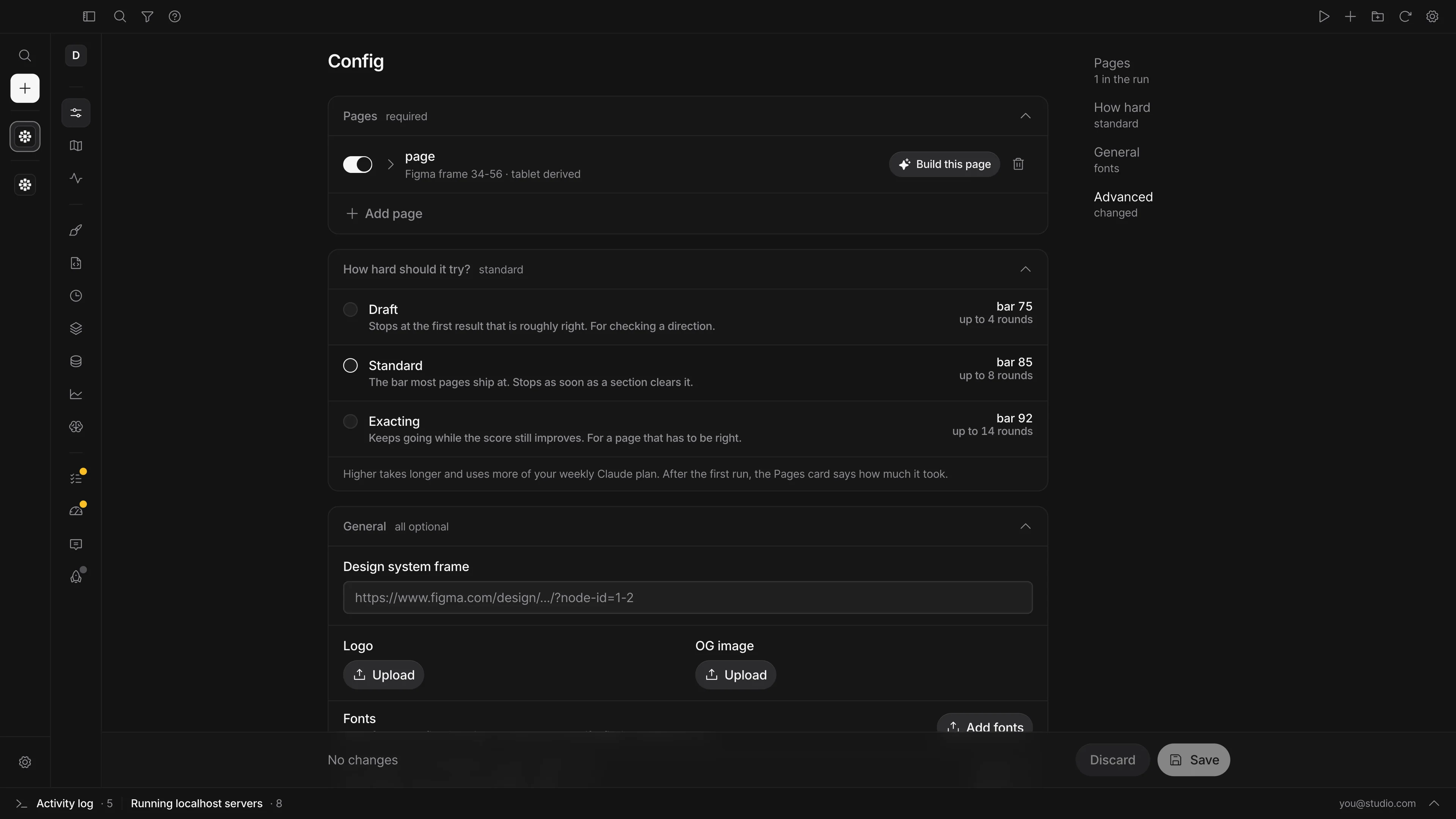
Click Save at the bottom to keep your changes. They apply to the next build.
Add a page
- In the Pages card, click Add page. The new page opens below the others.
- Give it a Name, for example about. The page file is named after it.
- Check its Mode and fill in the source: a Figma link, a page address or a brief. A new page starts in the mode of your other pages.
- Click Save.
You can also add pages in the Sitemap, which shows where each one sits in the site.
Pages
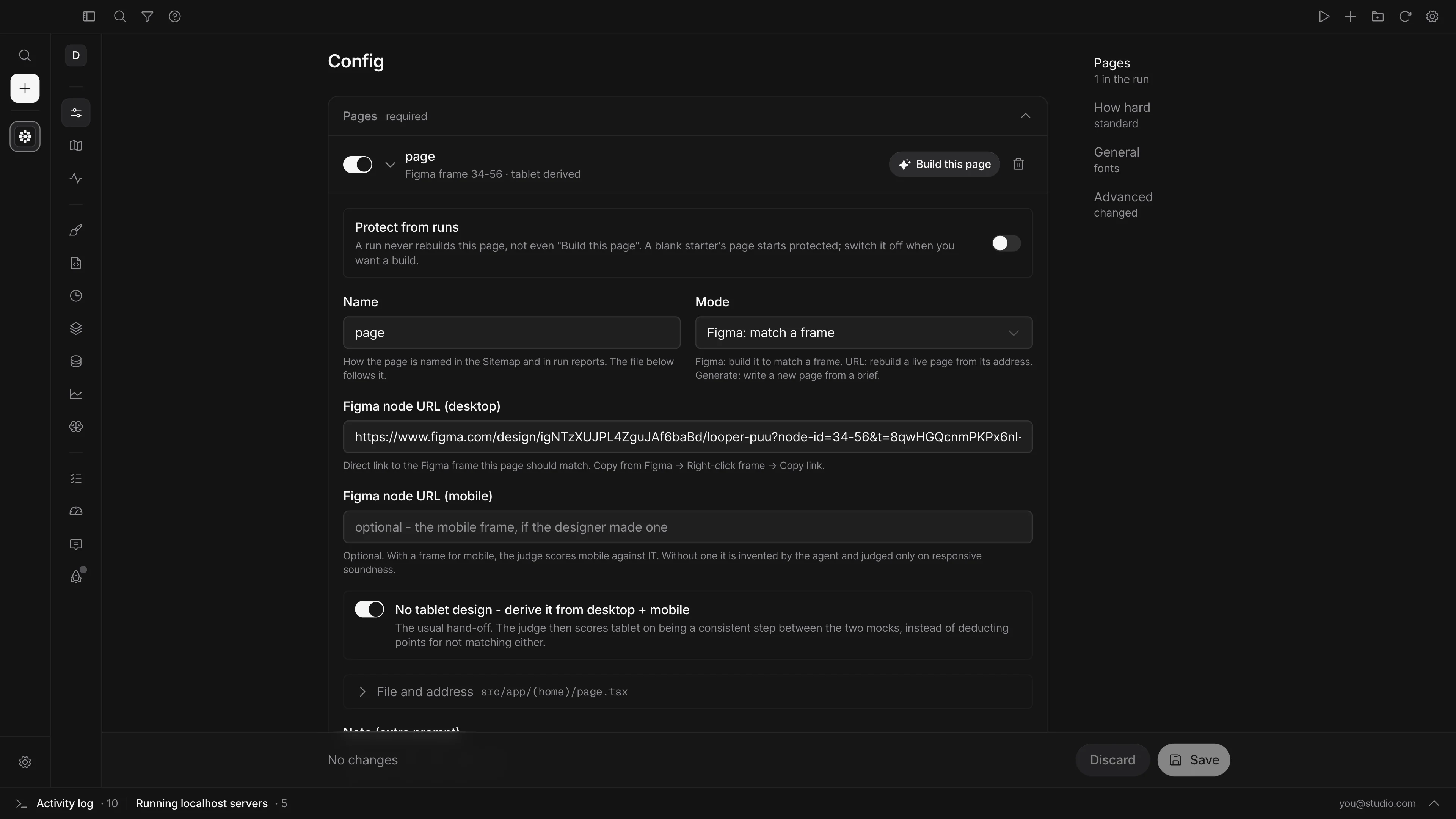
Each page is built from one of three sources. Click a page to open it, then pick its Mode:
| Mode | The page is built | You provide |
|---|---|---|
| Figma: match a frame | To match a Figma design | The link to the desktop frame. Add tablet and mobile frames if you have them. |
| URL: rebuild a live page | As a copy of a page that already exists | Its address |
| Generate: from a brief | From a description | A few sentences about the page |
Useful fields on every page:
- Name: what the page is called in the Sitemap and in reports.
- Parent page: puts the page under another, for example pricing under services.
- Note (extra prompt): anything the build should know: what matters, what is decorative, what moves. Added with priority.
- Reference files: images and documents for this page.
- No tablet design: tick it when the design has only desktop and mobile. The tablet view is then made as a step in between.
- Protect from runs: a build never touches this page. Turn it on for a page you finished by hand.
Give a page context
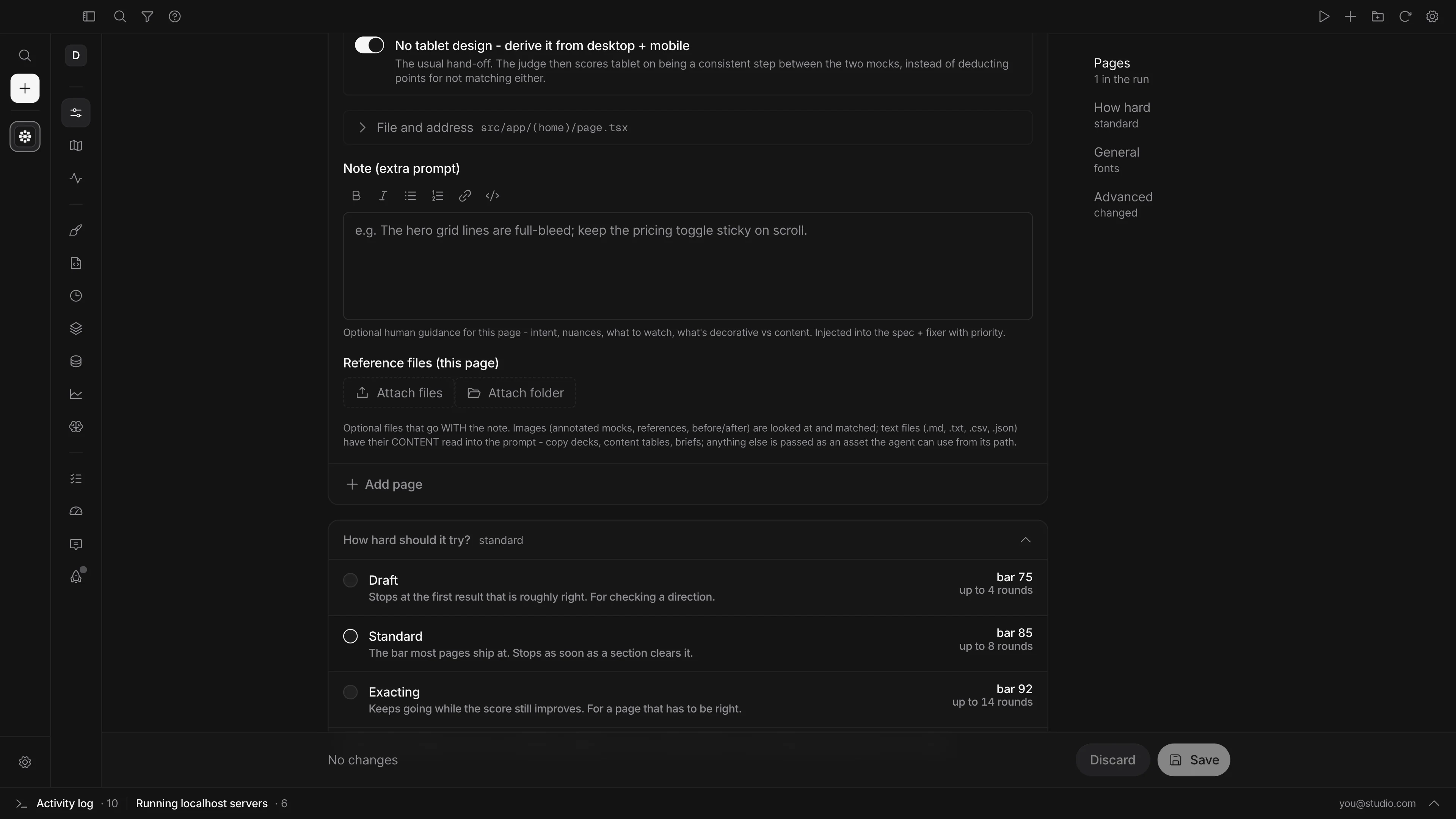
Context is what you would tell a developer before they start. Each page has two places for it:
- Note (extra prompt): a few sentences on what matters. "The pricing table comes first. The shapes behind the FAQ are decorative." The build reads it before anything else.
- Reference files (this page): Attach files or Attach folder. Images, such as annotated mocks or before and after shots, are looked at and matched. Text files (.md, .txt, .csv, .json) are read as content, so a copy deck or a price table lands on the page word for word.
Context for the whole site goes in General, under Reference files (whole project): a brief, brand guidelines, examples.
The switch next to each page decides whether Start builds it. Build this page builds just that one, now.
How hard should it try?
| Setting | What it means |
|---|---|
| Draft | Stops at the first result that is roughly right. To check a direction. |
| Standard | The level most pages ship at. Recommended. |
| Exacting | Keeps going while it still improves. For a page that has to be right. |
Harder takes longer and uses more of your Claude plan. After the first build, the Pages card shows how much it used.
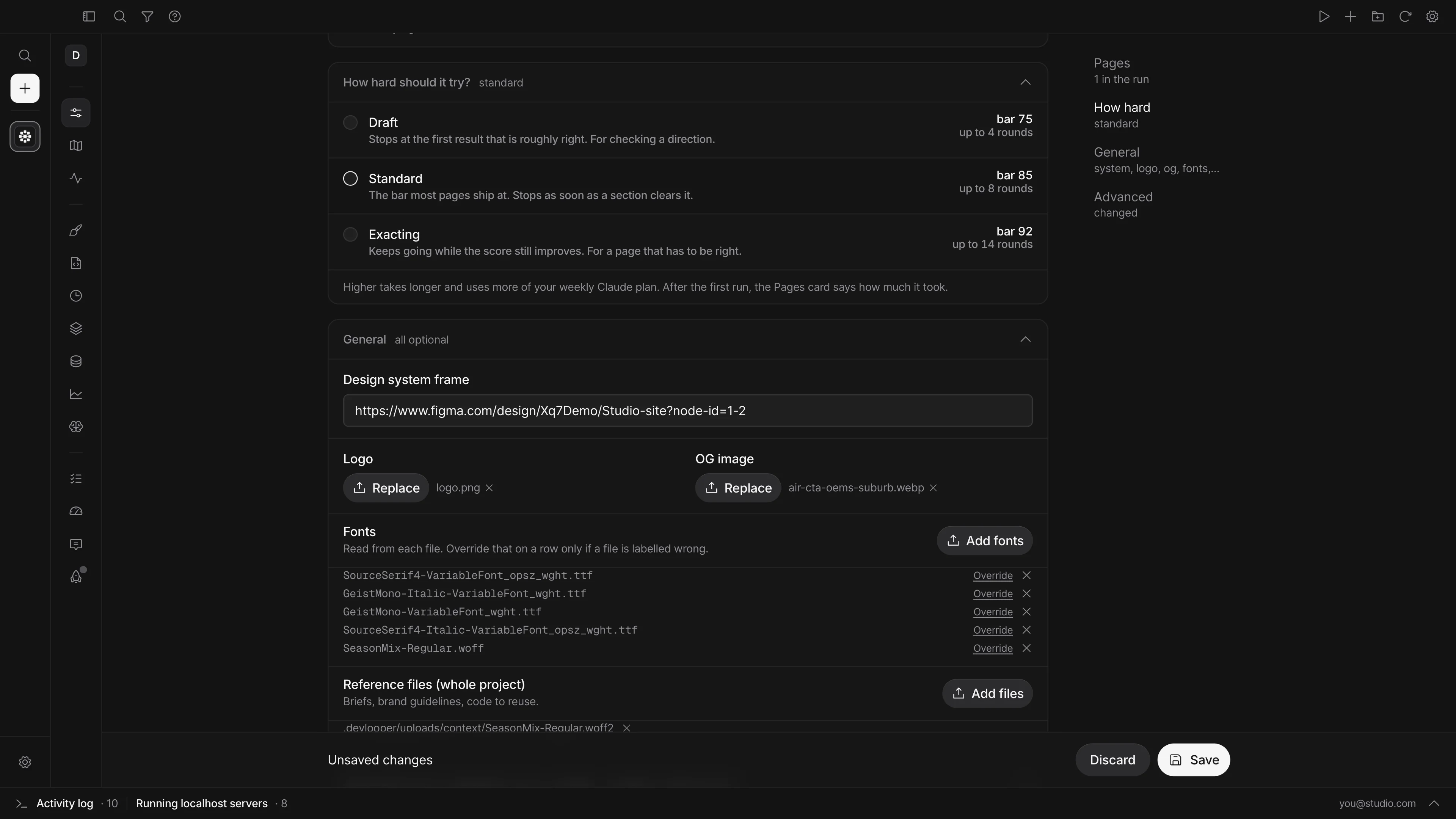
General
Optional, for every page:
- Design system frame: a Figma frame with the colors, type and components. Every page uses it.
- Logo and OG image (the picture shown when a link to the site is shared): click Upload. Replace swaps the file later.
- Fonts: click Add fonts and drop in the real font files (.woff2, .woff, .ttf, .otf), so the site uses them instead of a lookalike. The family, weight and style are read from each file; Override corrects a file that is labelled wrong.
- Reference files (whole project): click Add files for a brief, brand guidelines or code to reuse. They are read for every page.
Each upload says what it did, and nothing is written into the config until you click Save.
Advanced
Most of Advanced can stay as it is: the defaults balance quality and cost. Keep Model on its default in particular, because one model for everything makes builds noticeably more expensive. The settings worth knowing:
| Setting | What it does |
|---|---|
| Sections at once | Builds several sections in parallel. Faster, not cheaper. Start at 2. |
| Page draft (coarse-to-fine) | One quick pass for the whole page, then each section refines it. About 60% cheaper. |
| Draft every page first | Drafts all pages, then refines them one by one. Off: each page finishes before the next starts. |
| Polish pass | One cleanup pass after a section passes. |
| Read Figma comments | Open comments in the Figma file go to the build. |
| Inter-section spacing check | Fixes the gaps between sections against Figma. |
| Generate style guide after a run | Writes a style guide page from the real components. |
| Breakpoints | The screen widths each page is built and checked at. |
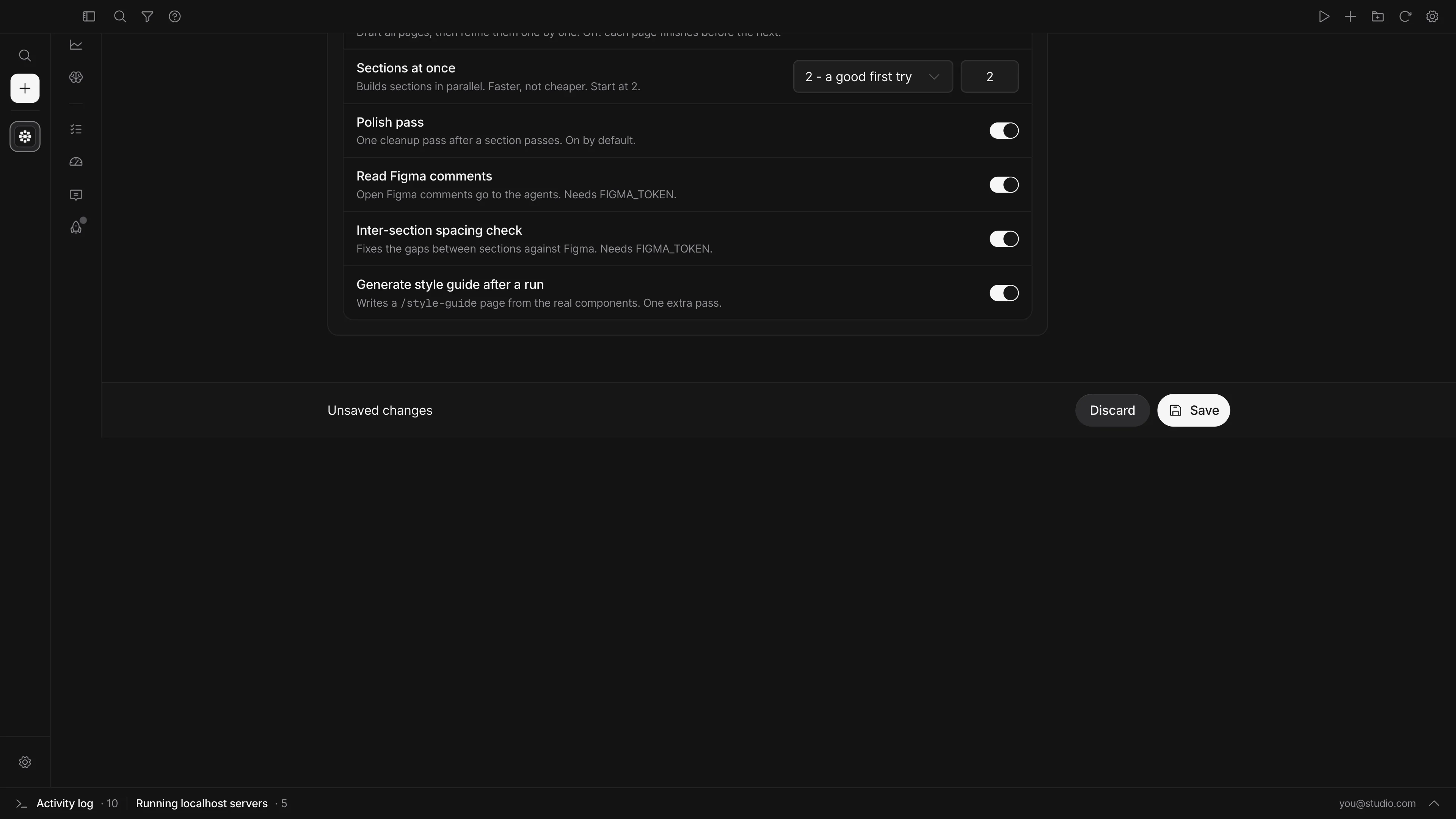
Every Advanced setting
Project
| Setting | What it does |
|---|---|
| Framework | How pages are built and served. Set when the project was created. |
| Directory | Where the site lives. AUTO means the folder the project is in. |
| Repo | Where the result goes after a build. |
| Build command | Runs before each round. Empty for a plain HTML site. |
| Server port | Leave empty: every project gets its own, so two can run at once. |
| Settle time (ms) | How long to wait after a build before the screenshots, for pages that animate in. |
Breakpoints: the screen widths every page is built and checked at, each with a Name, Width and Height. Add breakpoint adds one.
Loop
| Setting | Default | What it does |
|---|---|---|
| Score threshold | 85 | The score a section needs to pass. How hard should it try? sets it for you. |
| Max iterations / page | from How hard | Stops a page even if the score is not reached. |
| Budget minutes | none | A time limit across all pages. Empty or 0 for none. |
| Max turns | 160 | How long the fixer may work in one round. Too low cuts a repair short. |
| Judge max turns | 160 | Too low and the reviewer returns no score. |
| Figma reading max turns | 160 | Reading a frame; a landing page takes 50 to 100. |
| Interactions max turns | 120 | Menus, tabs and motion, added after a page passes. |
| Stagnation window | 3 | Rounds without enough gain before a page stops. |
| Smallest score gain that counts as progress | 2 | Less than this over the window counts as stuck. |
Model & effort defaults: Model and Effort for every stage at once. Keep them on the defaults.
Stages: each step of a build can have its own model and effort. The defaults:
| Stage | What it does | Default |
|---|---|---|
| Page draft | A quick first version of the whole page | Opus |
| Design-init | Reads the design system into tokens | Sonnet |
| Figma-init | Reads each page's frame | Sonnet |
| Generate-init | Plans a page from its brief | Sonnet |
| Asset-fetch | Downloads logos, icons and images | Haiku |
| Fixer | Writes the code each round, where the likeness is made | Opus |
| Judge | Scores the result against the design and never edits | Opus |
| Polish | Small details after a section passes | Sonnet |
| Interactions | Menus, tabs and motion after the page passes | Sonnet |
Passes: the switches in the table above, plus Sections at once.
Every field of a page
| Field | What it does |
|---|---|
| Switch (left of the name) | Whether Start builds this page. |
| Protect from runs | A build never touches the page, not even Build this page. |
| Name | What the page is called; the page file is named after it. |
| Parent page | Puts the page under another; its file moves with it. |
| Mode | Figma: match a frame, URL: rebuild a live page, or Generate: from a brief. |
| Figma node URL (desktop, tablet, mobile) | The frames to match. Only desktop is required; without the others, those sizes are made to fit and checked for working well. |
| No tablet design | Tablet is made as a step between desktop and mobile instead of being matched. |
| Page file | The file the page becomes. Follows the name. |
| Preview path | Where the preview shows the page, such as /pricing/. Leave it empty to follow the page file. |
| Selector | Compares only one part of the page with the design, such as .hero. Leave it empty to compare the whole page. |
| Note (extra prompt) | What matters on the page. Read first. |
| Reference files | Images to match and text files to use as content. |
| Build this page | Builds this page now. |
| Remove page (the trash icon) | Takes the page out of the project. In a project with one page it clears the page instead, because a project always keeps one. |