Sitemap
See your site's pages as a tree, add pages, and build them one at a time.
The Sitemap shows the same pages as Config, drawn as a tree that starts at the home page. It is the quickest way to add pages and see how the site is put together.
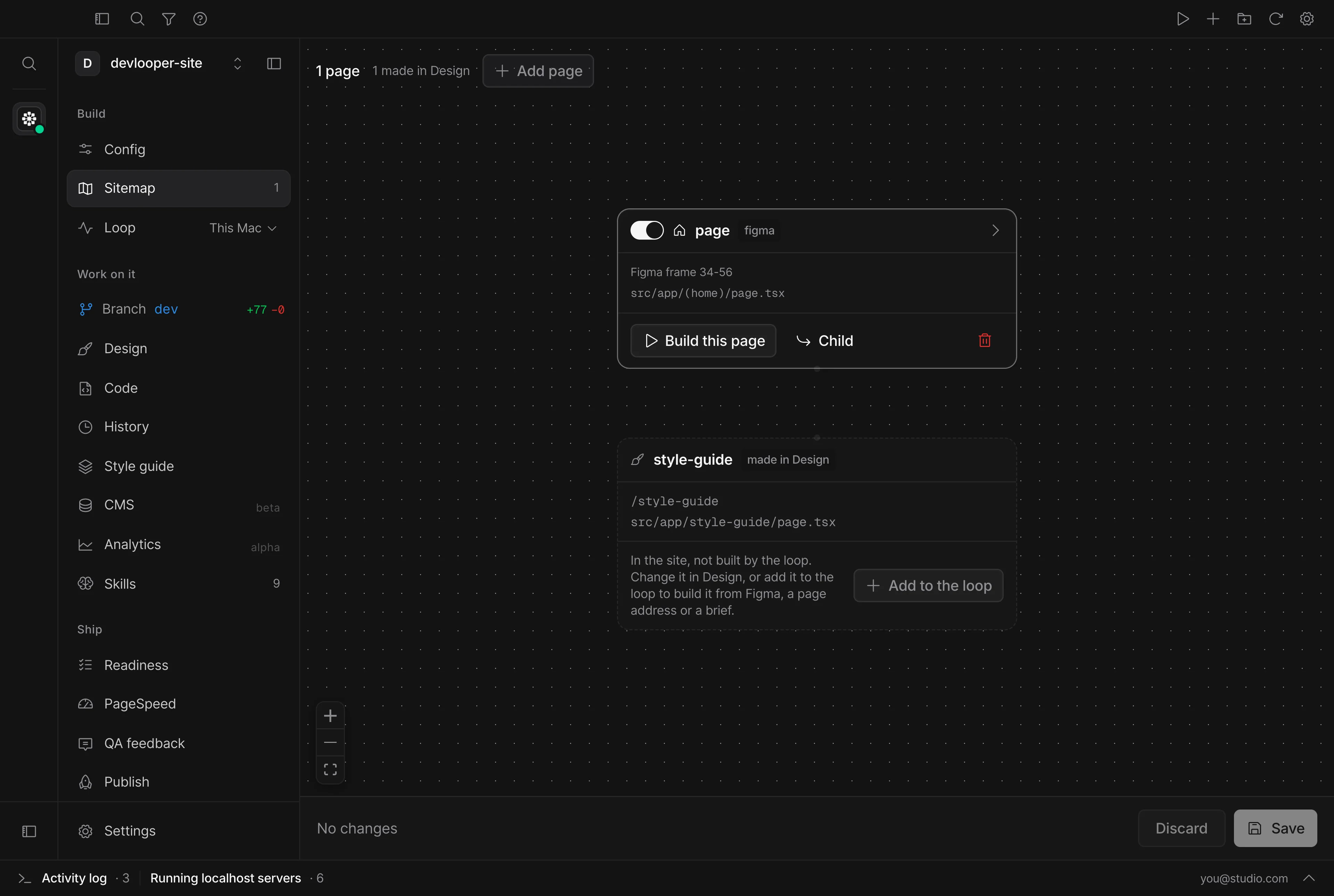
Add a page
- Click Add page at the top, or Child on a page to add one under it.
- In the panel on the right, give it a Name first. Without one, the page cannot become a file, and the Sitemap says so.
- Check its Mode: a Figma frame, a live page to rebuild, or a brief. A new page starts in the mode of your other pages. For Figma, paste the link to the desktop frame (in Figma, right-click the frame and choose Copy link to selection).
- Add context in Note (extra prompt) and Reference files if the page needs it. See Give a page context.
- Click Save at the bottom.
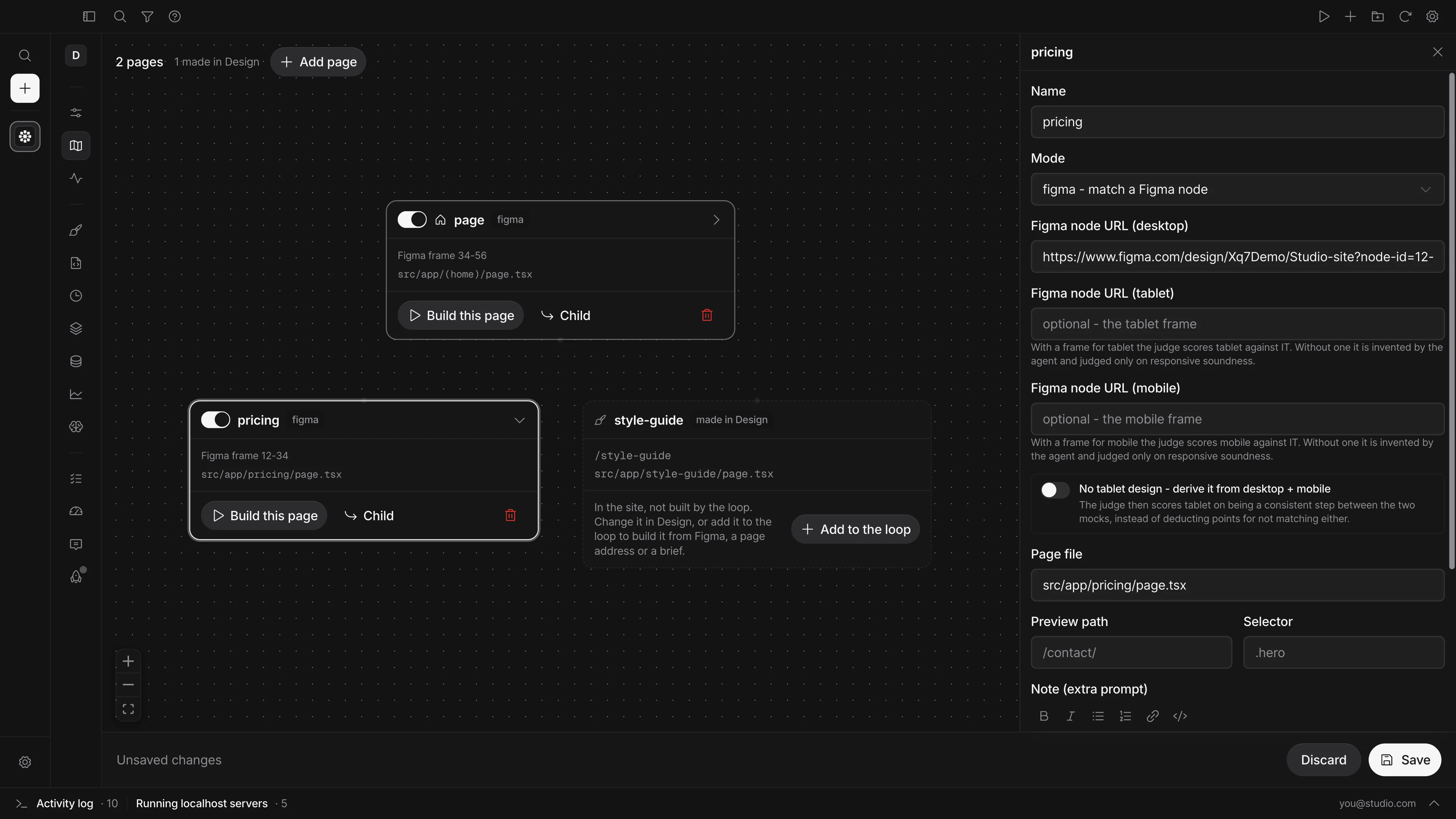
Parent page moves a page under another later; its file moves with it.
Build one page
Click Build this page on its card. Only that page is rebuilt. Parts it shares with the other pages, like the header, the footer or a closing section, keep the look they have there: if the new page needs one different, it gets a version of its own.
Pages made in Design
Pages you made in Design appear as dashed cards marked made in Design. The loop does not build them. Add to the loop adds one to the Sitemap so you can build it from Figma, an address or a brief later. Building it replaces what was made by hand, so devlooper asks first.