Edit content at /cms
What the site's owners see at /cms on their site, and how they change pages, lists and pictures.
Once a CMS is connected, the site's owners edit it themselves at /cms on their own address, for example yoursite.com/cms. Nothing they change is public until they press Publish.
Sign in
- Payload sites: the e-mail you were invited with and your password, then Sign in. Forgot it? E-mail me a link sends one that works for seven days, or an administrator sends a new one from People.
- Sanity sites: Sign in with Sanity. The Studio opens in a new tab; sign in there and come back, the page notices on its own.
The very first account on a new Payload site is made with Set up the first account and becomes the administrator.
Pages
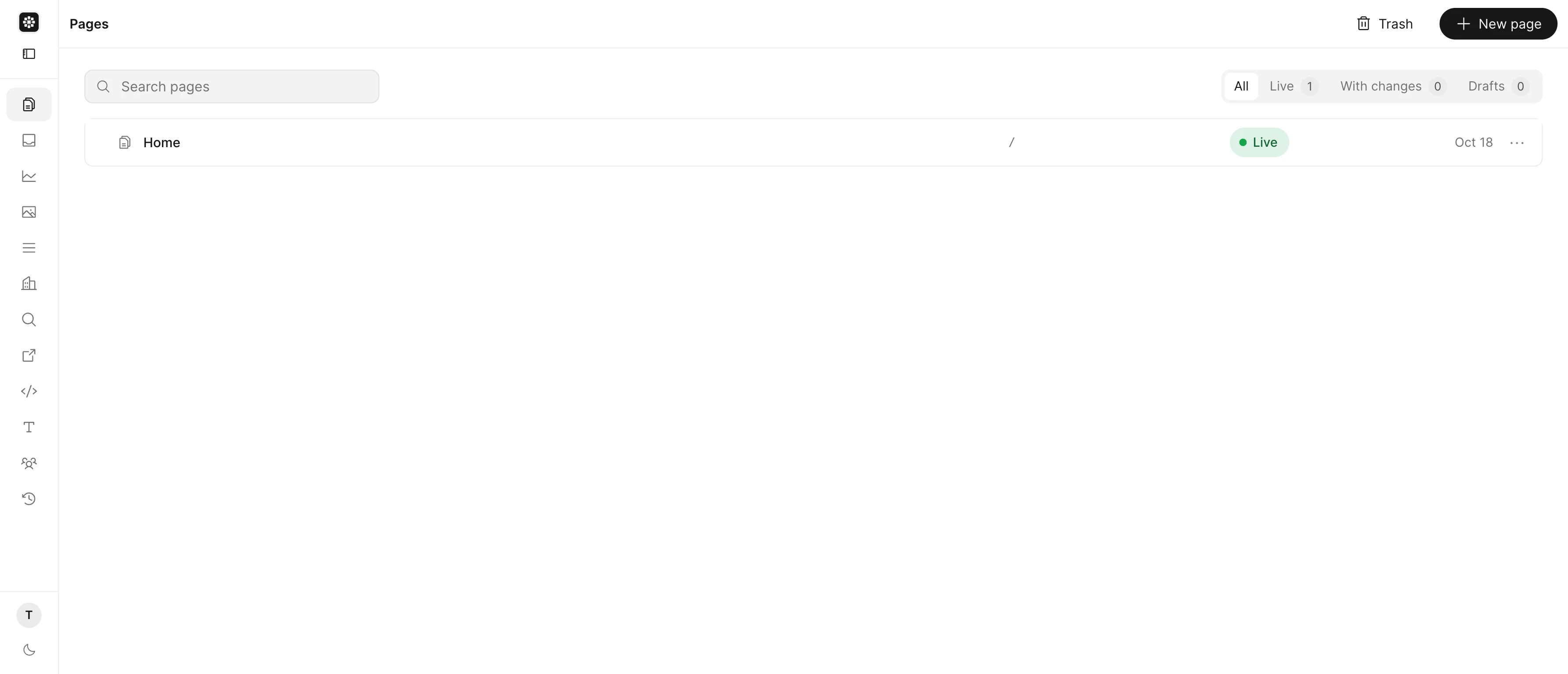
Pages lists every page of the site, in folders. The filters show All, Live, With changes and Drafts. A page marked Live, with changes has edits that visitors do not see yet.
- New page asks for a title and a folder, and what to start from: Regular page, Service, Landing page, Contact, Empty page, or a copy of a page the site already has.
- A page's menu has Open in the editor, Duplicate (a draft copy) and Delete (to the trash, with Undo).
- Move to folder… changes a page's address. On Payload the old address sends visitors to the new one once you publish.
- Pages with In code and a lock are built into the site's code. Ask your developer to change those.
Lists such as Blog posts work the same way, with filters for status, author and date, sortable columns, and Publish or Take off the site for several entries at once.
The page editor
The page is shown live beside its form, at Desktop, Tablet or Phone size.
- Click a word on the page to type it in place. Click a section to open its fields.
- Sections lists the page's sections. Add opens a gallery of section types; drag to reorder; Duplicate and Remove on each.
- A section has Content (its words, pictures and links), Look (its layout and Light, Dark or Brand theme) and, for lists like blog posts, What to show.
- Page holds the title, the address, and how the page looks in search results and when shared.
- History brings back an earlier version with Bring back.
- Undo and Redo (⌘Z and ⇧⌘Z) work until you leave the page.
Changes save on their own as a draft half a second after you stop typing. The bar at the top says Saving… or Saved with the time. Without a connection, changes wait and save when you are back online.
Pictures
Drop a file on a picture field or Choose from library. Crop makes a version for this place only (16:9, 4:3, 1:1 and more); the picture in the library stays as it is.
Publish
Publish (or ⌘S) shows what changed and publishes Now, or On a date on Payload sites. Authors cannot publish: an editor or an administrator does it for them.
Pictures and files
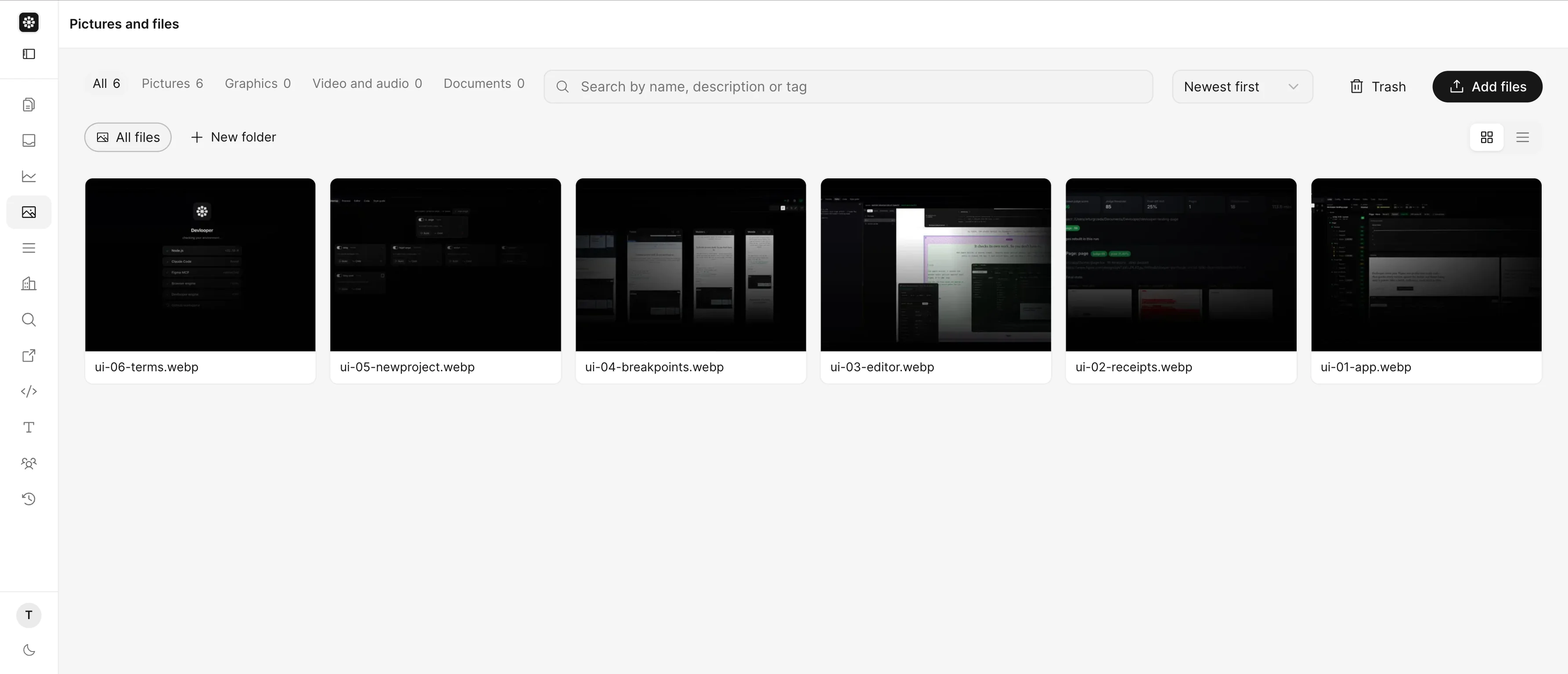
Pictures and files is the site's library: pictures, graphics, video and audio, documents. Drag files anywhere to add them (up to 20 MB each), sort them into folders, and give pictures a description for search engines and screen readers. Click a picture to set the point that stays in view when the site crops it. Used in shows where a file appears before you delete it.
People and roles
| Role | Can |
|---|---|
| Administrator | Everything, including people and backups |
| Editor | Edit, build pages and publish |
| Author | Edit and save drafts; an editor publishes |
On Payload sites an administrator invites people from People with Invite someone: the panel makes a link that works once, for seven days. Works on can limit someone to parts of the site, for example only Blog posts. On Sanity sites people are invited in Sanity.
Trash
Deleted pages, entries and files wait in Trash until you Bring back or Delete for good.
Two people at once
If someone else saves the same page while you edit it, a bar offers Load their version or Keep mine. When the site has collaboration turned on, you also see who else is on the page and can leave comments on it.