Connect a CMS
Let the site's owners edit text, pictures and pages themselves, at /cms on their site.
A CMS lets the people who own the site change its words, pictures and pages without a developer. devlooper connects one to your site and gives the owners an editor at /cms on their own address.
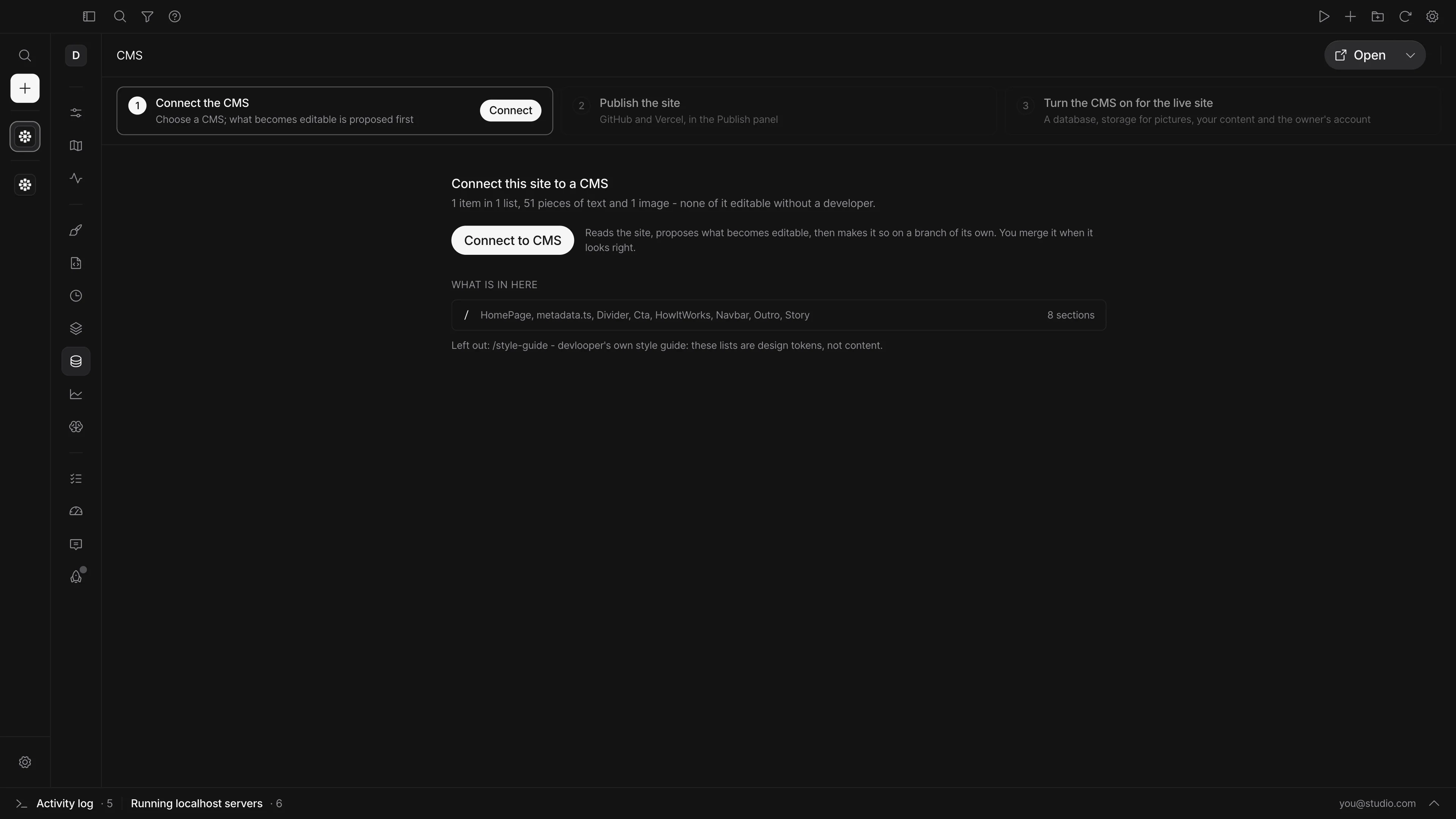
Choose a CMS
| Payload | Sanity | |
|---|---|---|
| Where content lives | Inside your site | In Sanity's cloud, on your Sanity account |
| Sign-up | Nothing to sign up for | A free Sanity account |
| Works with | Next.js sites | Next.js and Astro sites |
Connect it
-
Open the project and click CMS in the sidebar.
-
Click Connect to CMS, choose Payload or Sanity, then Continue.
-
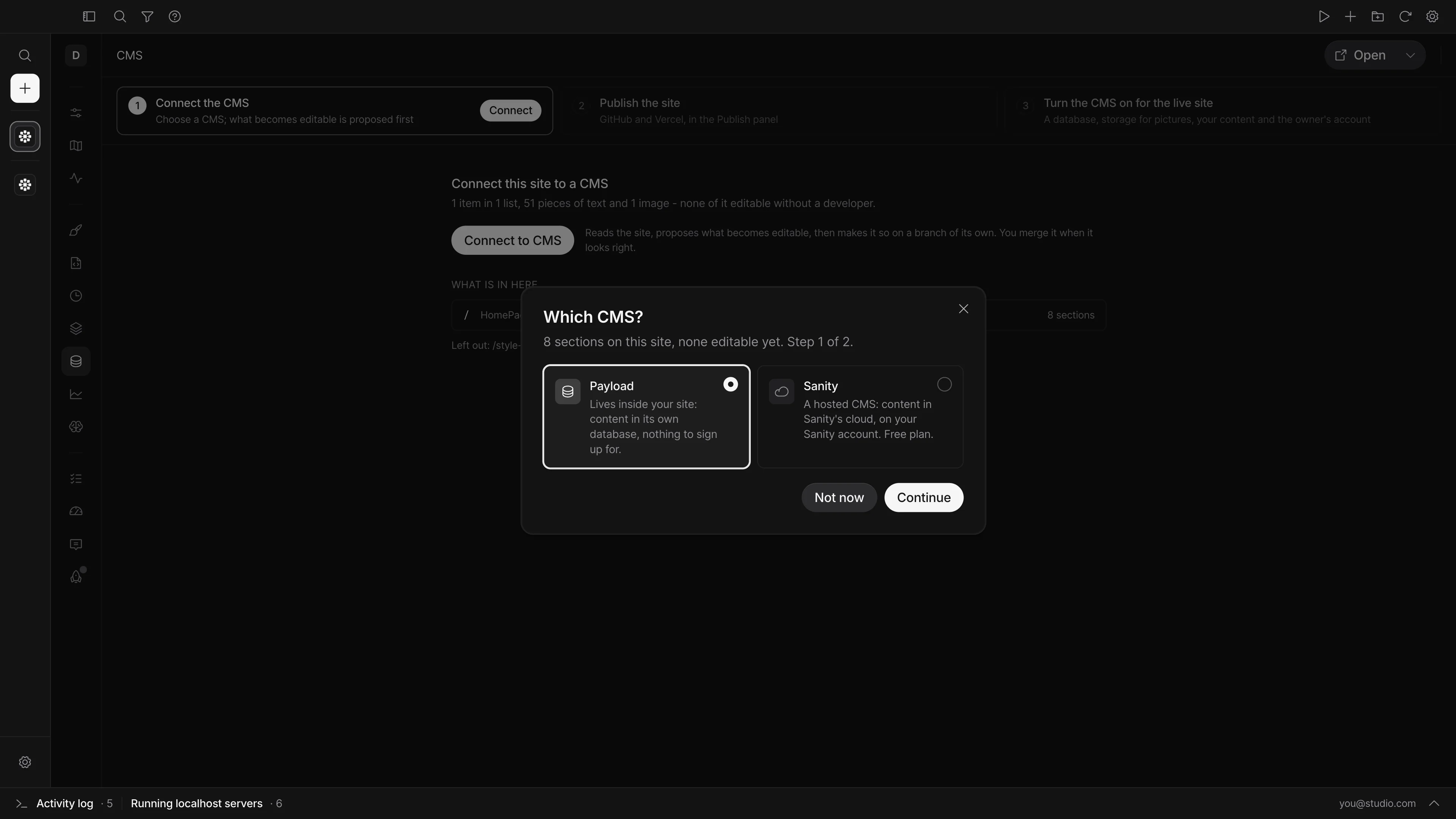
Choose With our editor (recommended) so owners edit at /cms.
-
Click Connect. devlooper installs the CMS packages, reads the site and shows a plan: what becomes editable. Your pages stay as they are until you approve it.
-
Read the plan and click Approve plan and connect. Claude makes the sections editable; this takes a while.
-
Click Merge into dev to keep the result. In a project without git there is nothing to merge: the change is already in the site, so check it and publish.
On your site in the CMS tab, green marks what can be edited and orange what cannot yet. Click Pick, then any heading or picture, to decide what it should become.
Put it on the live site
The CMS tab shows three steps at the top:
- Connect the CMS (above).
- Publish the site: click Publish. See Publish a site.
- Turn the CMS on for the live site: click Go live. For Payload this sets up the live database and the owner's account; the owner's password is shown once, so copy it and send it to them.
On a Sanity site this step finishes with publishing: the live address is allowed in Sanity. See Payload or Sanity.
Keep it up to date
When a newer version of the CMS is out, the CMS tab shows Update the CMS. Pages and content stay as they are.
What the owners see at /cms
The site's owners sign in at /cms to edit pages, lists like blog posts, pictures, the menu and company details, and publish their changes themselves. See Edit content at /cms and Site settings at /cms.