Canvas and versions
See the page at every screen size, ask for new designs of a section, and compare them side by side.
The canvas shows your page at every breakpoint at once, on a board you move around like Figma. It is also where new designs of a section appear: each version is a live card beside the section, and you pick the one you like.
Open it in Design: in the toolbar's view menu choose Canvas: this page at every breakpoint. Design remembers the view you left it in.
Move around
| How | What it does |
|---|---|
| Two fingers on the trackpad | Pan the board |
| Pinch, or ⌘ + scroll | Zoom at the pointer, from 5% to 400% |
| Space + drag, or ⌘ + drag | Pan, even with the pointer over a page |
| ⇧1 | Fit everything |
| ⇧0 | Zoom to 100% |
| ⇧= and ⇧− | Zoom in and out |
| Double-click a frame's bar | Zoom to that frame |
The zoom bar in the bottom left shows the zoom level and fits everything with one click. Tidy up, in the bottom right, lines up the pages, the versions and everything else on the board. Drag a page by its bar to put it anywhere; the board remembers where.
Ask for versions of a section
- Open Sections and variants on the right and click Variants on a section.
- A prompt opens on the board, joined to the section by a line.
- Write a direction if you have one, for example "a darker hero, split layout, the product shot beside the text". You can attach pictures or draw a quick sketch.
- Choose how many Versions (1 to 6), and the model and effort, as in the chat.
- Click Generate.
Each version is written by its own agent, at the same time. A card for each appears beside the prompt straight away, with a light running round it while it is made. Three versions usually take under a minute.
You can ask for versions of several sections at once. Each runs on its own, and a notice with Show tells you when one finishes.
The prompt stays on the board. Click it to open it again with what you wrote and make more; double-click to bring it up close. Remove this prompt takes the prompt away and keeps its versions.
Prompts to try
Paste one into the prompt on the board. A direction that names the layout, the type and the mood gives versions that really differ.
Three directions for a hero
Canvas · Variants on the Hero
Three different takes: one editorial with a large serif headline, one split with the picture on the right, one minimal with only the text and a button.
The same content, another layout
Canvas · Variants on a section
Show the plans as a comparison table instead of cards, with the recommended plan picked out.
More premium
Canvas · Variants on a section
Make this section feel more premium: fewer items, larger type, more space around everything. Same colours.
Work with the cards
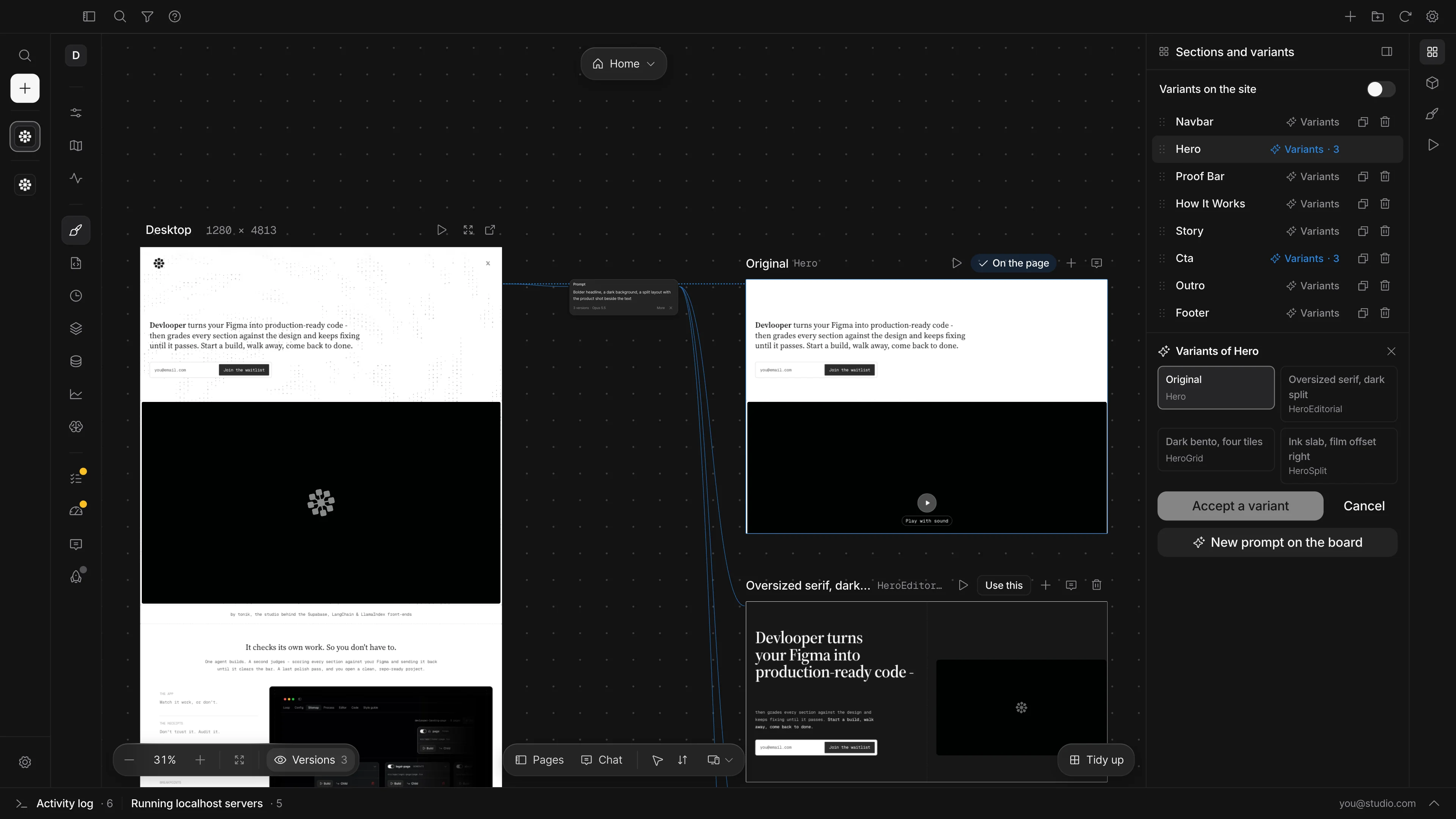
Each card is the real page drawn with that version.
| Control | What it does |
|---|---|
| Use this | Puts this version on the page. The card of the one in use says On the page. |
| Play | Plays its motion and interactions. |
| + | Shows it at another breakpoint. |
| Chat | Talks about this version in the chat. |
| Bin | Deletes the version. devlooper asks first and never deletes one the page still uses. |
Drag a card anywhere by its bar, or resize it by its edge. Drag a card and its prompts come along; drag a prompt and its versions follow. Pins work on cards too: a pin on a version names the version, its component and its section. Versions in the zoom bar hides them all for a clean view of the page.
In the Sections and variants panel, the section's versions also show as pictures. Pick one there to try it on the page, then Accept (it names the version you picked, such as Accept Variant 2) to keep it, or Cancel to go back to the original.
New sections
- Drag New section from the Sections panel onto an empty part of the board.
- Name it, describe it, attach pictures or draw a sketch, choose how many versions, and Generate.
- The versions lie loose on the board. Your page does not change.
- Put one on the page with Add to page, or drag it between two sections of a page.
Close the panel and they stay: they are listed under Not on the page, ready for more versions, and can be dragged onto the page later like components.
Components
The Components tab on the right lists the site's own components. Drop one on the board to see it alone, ask for Variants of it, or show it at another breakpoint. Save on a version's card keeps it as a component of its own: name it, and it moves out of the versions into Components.