Change the page in Layers
Duplicate, move, copy and delete elements from a tree of the page, the way Webflow's navigator works.
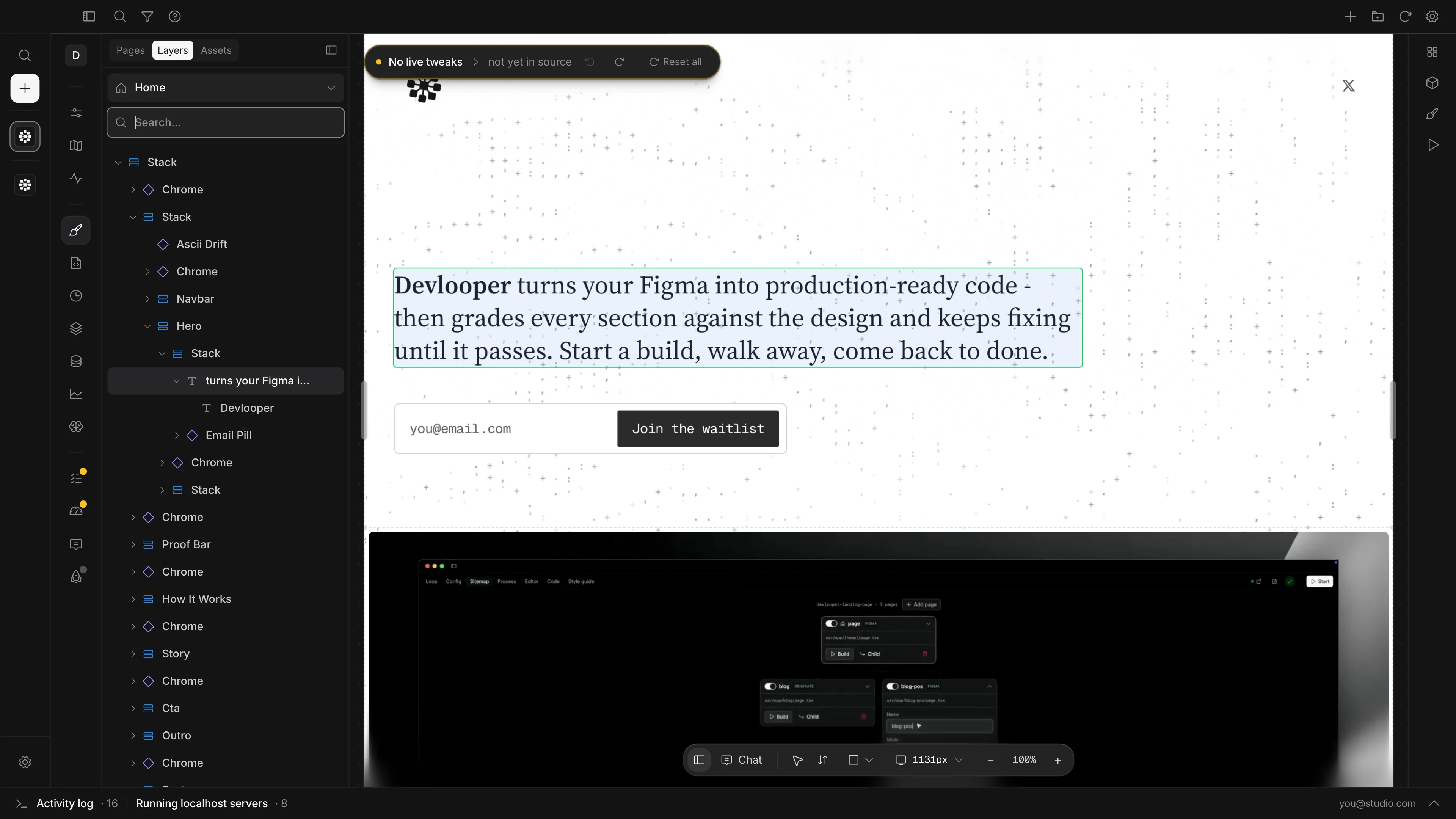
Layers shows the whole page as a tree: every section, and everything inside it. Pick a row and change it with the keyboard, a drag or the right-click menu. Every change goes straight into your source code, with no Claude run, and ⌘Z takes it back.
Open it from Pages in the Design toolbar, then the Layers tab.
Pick an element
Click a row to pick that element. It is outlined on the page, and the page scrolls to it. A text, a link or a button is named by its words, so you can find it without knowing the code.
The search box at the top finds a layer by its name.
Keyboard shortcuts
| Keys | What it does |
|---|---|
| ⌘D | Duplicate the picked element |
| ⌘C, ⌘X, ⌘V | Copy, cut and paste it (paste goes after the picked element) |
| ⇧⌘V | Paste inside the picked element |
| ⌫ (Backspace) | Delete it |
| ⌥↑, ⌥↓ | Move it up or down |
| ↵, ⇧↵ | Go to its first child, or to its parent |
| ⇥, ⇧⇥ | Go to the next or previous element |
| ⌘Z | Undo the last change |
Drag a row
Drag a row onto another. A thin blue line shows where it lands: before, after or inside that element. Let go and the element moves in the code.
The right-click menu
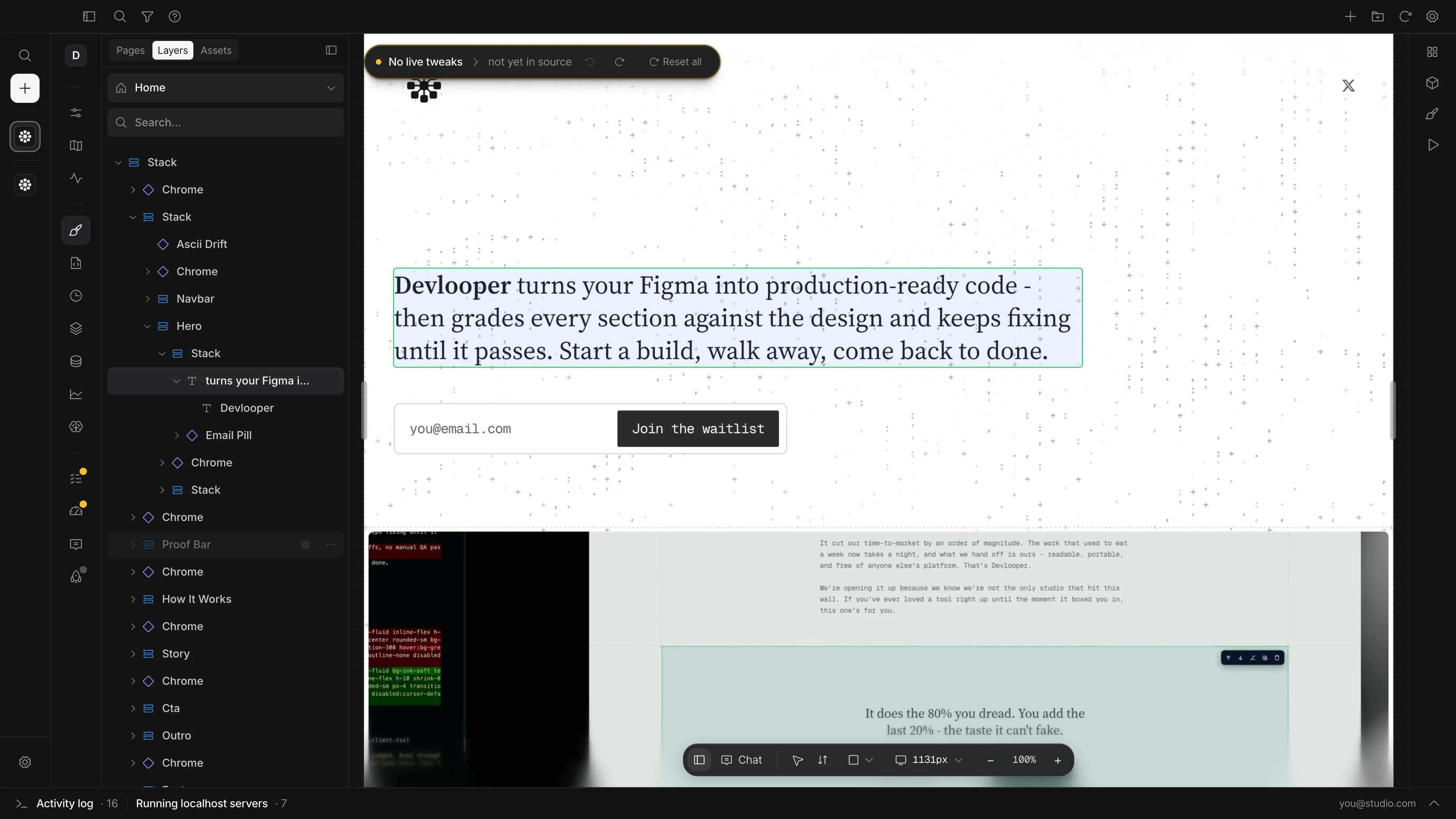
Right-click a row for everything you can do with it. Type to search the menu: classes finds Copy classes without opening Copy.
| Item | What it does |
|---|---|
| Add a fix for Claude… | Opens a note on this element, to send to Claude. |
| Design variants for this section… | New designs of the section it sits in. See Canvas. |
| Select | Its parent, first child, next or previous element. |
| Copy | The element, its classes, or its path in the code. |
| Paste | After, before or inside the picked element, or paste classes onto it. |
| Move | Up or down among its neighbours. |
| Duplicate, Cut, Delete | As the shortcuts above. |
| Hide on the canvas (⌘;) | Hides it while you work. The site does not change. |
| Add frame (⇧F), Add stack (⇧A) | Wraps the element in a box, or in a box that lays its children out in a row or column. |
| Remove frame (⌘⌫) | Takes the wrapper away and keeps what was inside. |
| Add child element…, Add sibling element… | Asks Claude for a new element inside or beside this one. |
A section has a shorter menu: it can be moved, duplicated, hidden and deleted, but not copied or wrapped.
Cards drawn from a list
Many sections draw the same card several times from a list, for example three pricing plans or six team members. In Layers each card is its own row.
- Duplicate and Delete on one card change that card only.
- A change inside such a card asks first and says how many cards it reaches, because they all come from the same code.