Guides3. Run the loop
Run the loop on your Mac
Start a build, watch it, stop it, and find the result.
Before you start
Start checks these for you and says what is missing:
- Every switched-on page has something to build from: a Figma frame, a live page or a brief. See Config.
- Claude is signed in. See Your Claude plan.
- A plan is active. See Your plan and key.
GitHub and Vercel are not needed to build, only to publish.
Start
- Open the project and go to Loop.
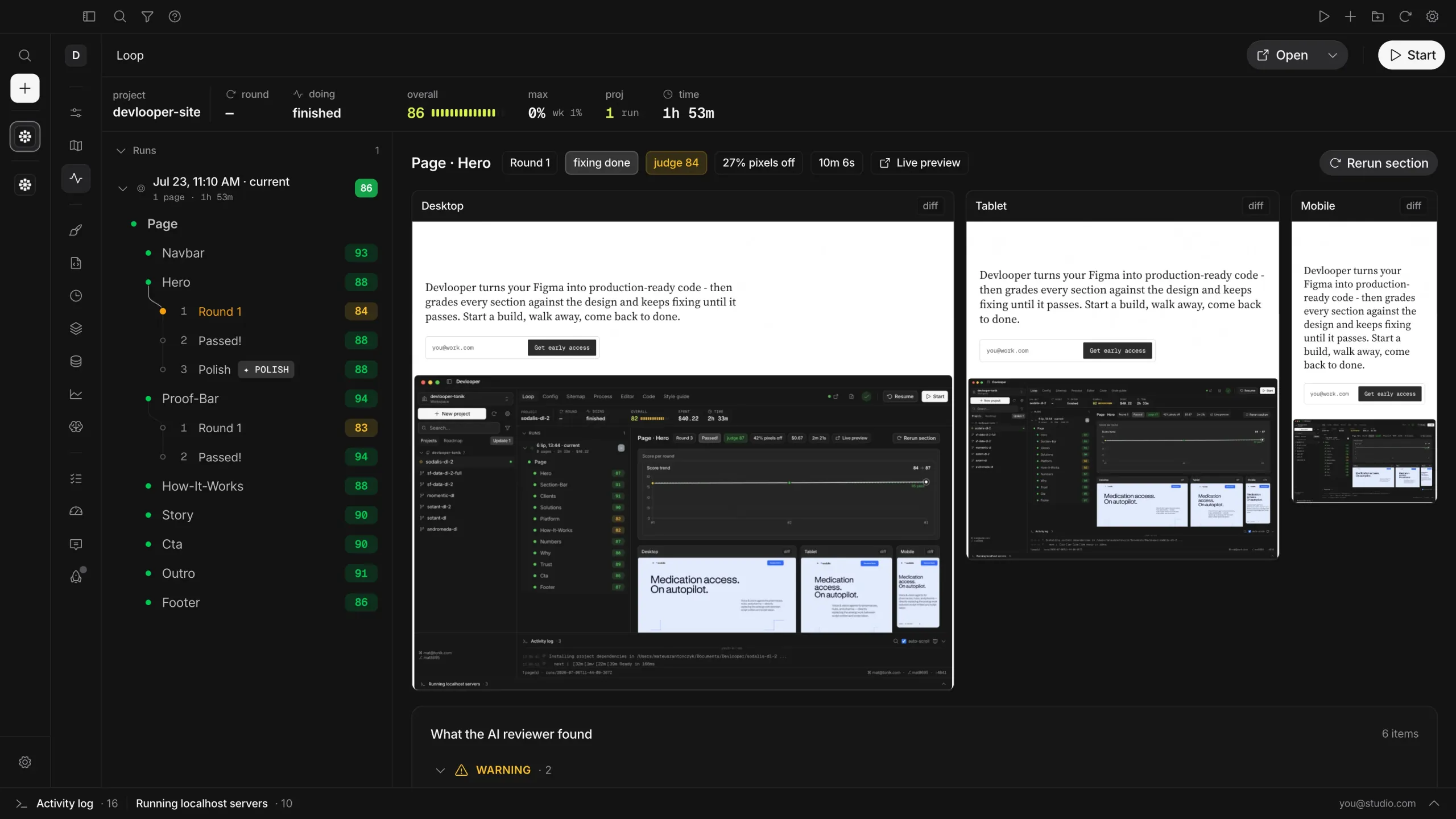
- Click Start at the top right. devlooper lists the pages it will rebuild; confirm with Start run.
- If you changed pages by hand, it asks first: Replace and start, or Protect pages in Config to keep them.
Watch
The Loop view shows each section's score, the screenshots next to the design, and what the reviewer found. The bar at the top says what is happening now.
You do not have to watch. Close the window: the build keeps going as long as the app is running and the Mac is awake. See Keep your Mac awake.
Quitting devlooper stops a build on your Mac. The work so far is kept, and Resume carries on. To close the laptop and leave, use Railway.
Stop, resume, rebuild a section
- Abort stops the build. It takes about a minute to save the screenshots and the report; everything built so far is kept.
- Resume carries on where it stopped.
- To redo one section, select it and click Rerun section. You can add a note for the fixer.
The result
When it finishes, open Design to see the pages. Each section shows its score. Polish what is left with Design, then publish.
If your Claude plan hits its limit, the build waits when the limit resets soon, or stops and tells you when to press Resume.