Guides6. Publish
Branches and syncing
See whether your copy is up to date with your team, and work on a separate version of the site.
The Branch row in the project sidebar shows which version of the site you are working on (usually dev) and whether it is in step with GitHub.
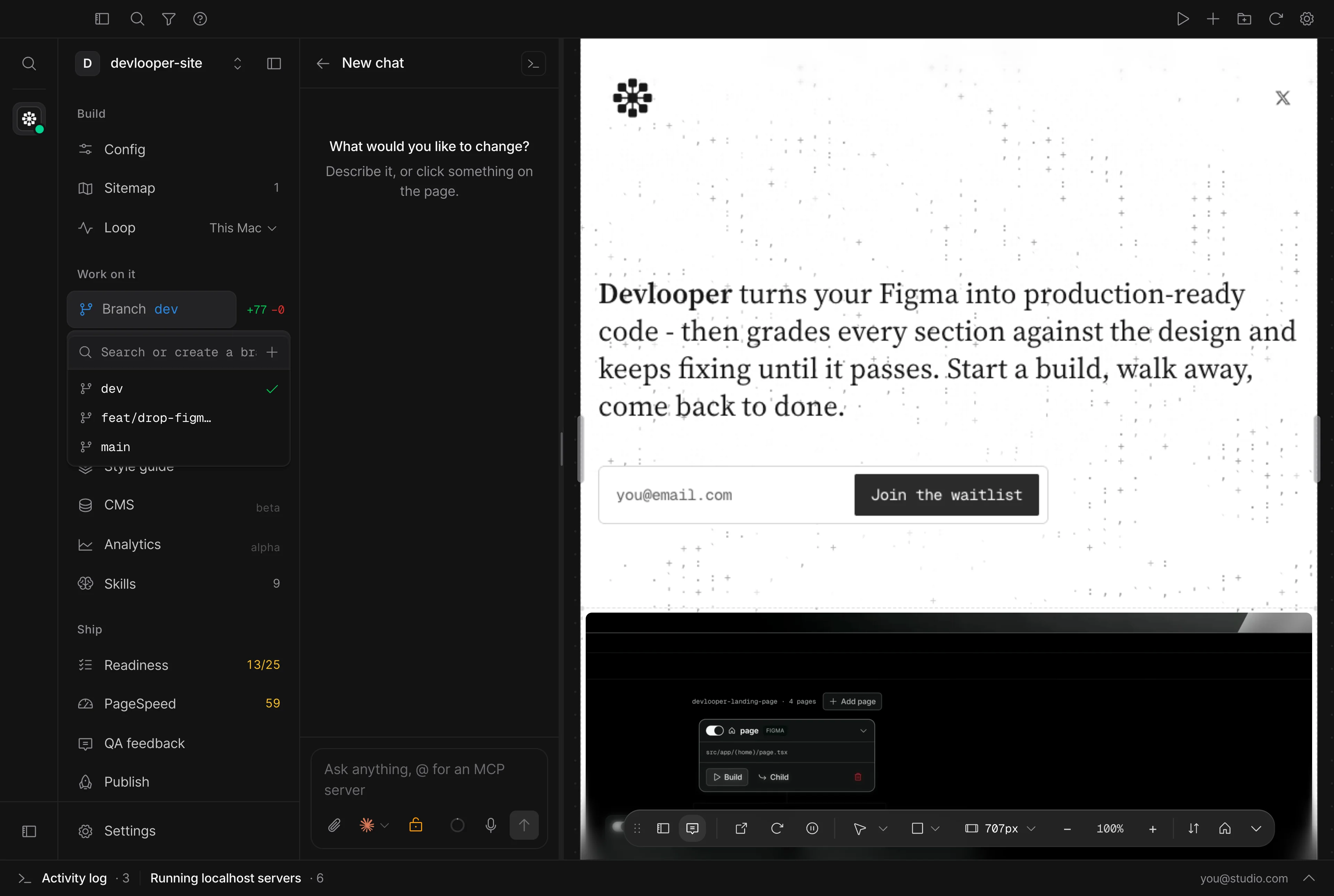
Is my copy up to date?
Small labels next to the branch tell you:
| Label | Means |
|---|---|
| +12 −3 | Lines you changed that are not saved as a version yet |
| ↓2 | Changes your team sent that you do not have |
| ↑1 | Versions saved here that are not on GitHub yet |
Click them to open Sync with GitHub:
- Get them brings in your team's changes.
- Send… opens Publish to send your work.
- See the changes shows what you changed, in History.
- Check now asks GitHub again.
Work on a separate version
- Click Branch.
- Type a name, for example new-homepage, and click Create … and switch to it here.
- Work as usual. The main version is untouched.
To switch back, click Branch and pick the other version. If you have unsaved changes, devlooper saves them first, on the version you are leaving.
To bring a separate version into dev, switch to dev, hover the other branch, click the merge icon, then Merge.
Deleting a branch removes it for good, including any work on it that was never merged.