Troubleshooting
What to do when a build will not start, the preview goes white, or publishing fails.
A build will not start
Start checks everything first. If something is missing, it says Not ready to start, names the reason and opens the place to fix it. The usual reasons:
- A page has nothing to build from. Add its Figma frame, a live page or a brief in Config. A Figma link must point at one frame: in Figma, right-click the frame → Copy link to selection.
- Claude is signed out. The bar at the bottom says sign in again: click it. See Your Claude plan.
- No active plan. See Your plan and key.
A build is stuck at the start
If a build shows The run did not start, or sits on its first step for more than a few minutes, it has stopped:
- Click Abort.
- Quit devlooper with ⌘Q and open it again.
- Click Start again.
Claude keeps asking me to sign in
Open Settings → Accounts → Claude Code:
- not signed in: click Connect and sign in.
- If it says devlooper's own account but builds still fail, click Disconnect. devlooper then uses the Claude account your terminal uses. Quit with ⌘Q, reopen and start again.
The preview is white or gone
The preview restarts itself after big changes and while packages install, so give it a moment. If it stays white:
- Click another tab and come back.
- Turn the project off and on: right-click it in the Hub → Turn off, then open it again.
- Ask the Design chat: "The preview is not loading, please fix it."
Your work is not lost when the preview disappears.
A bar says the project's Next.js has a known security hole
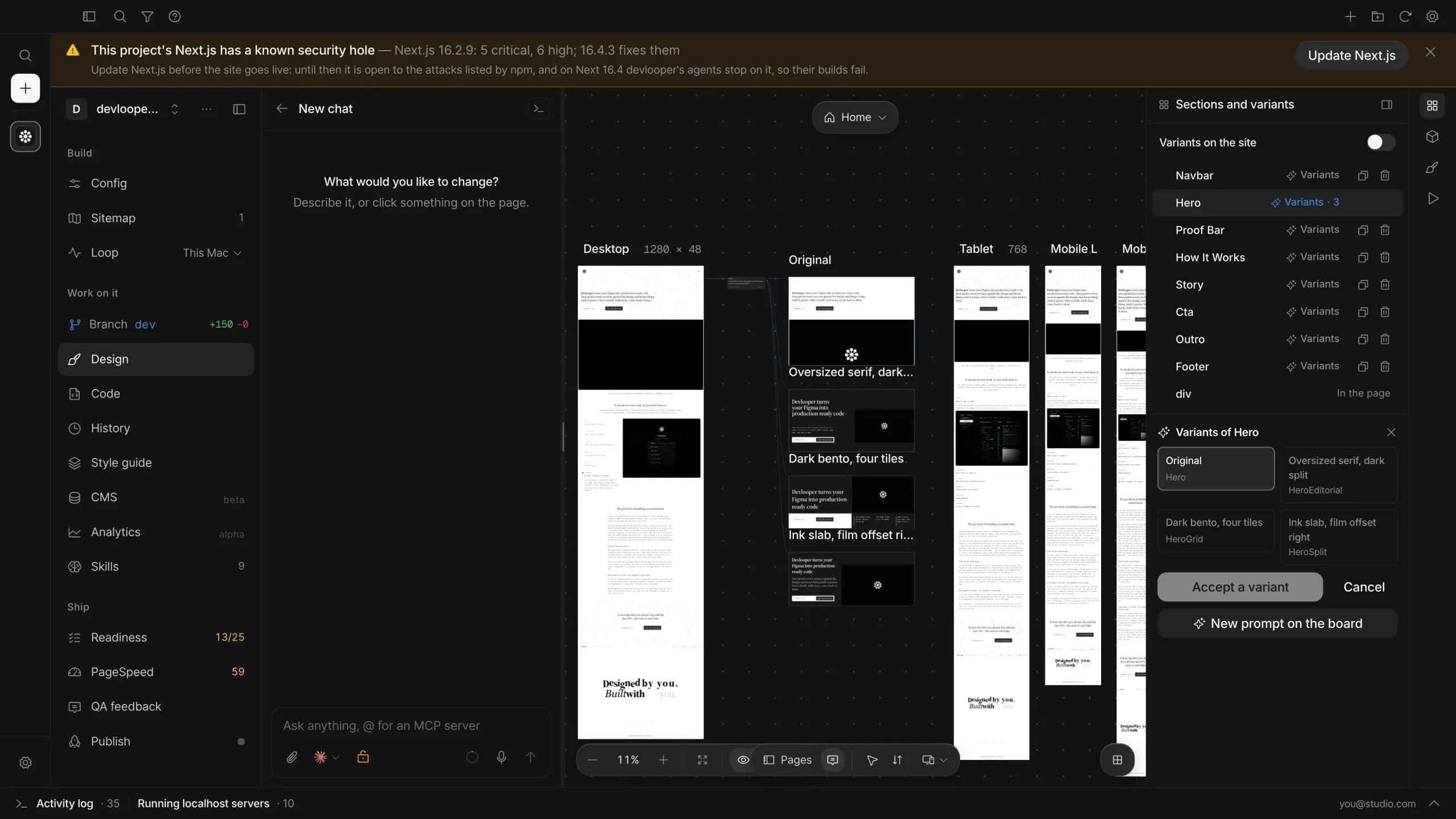
The bar names the Next.js version and how many known holes it has. Click Update Next.js: it installs the fixed version, and the bar goes away when it is done. Update before the site goes live. Until then, builds on the newest Next.js stop on it.
A bar says a version was left in the page
When a version of a section stays in a page by mistake, a bar names it. Keep the original puts the page back as it was. See Canvas and versions.
Publishing fails
The Publish panel says what went wrong and offers the fix:
- Fix it in the chat: the site has a problem that would stop it building. Click it so Claude fixes it, then send again.
- Get the team's changes: a teammate sent work first. Click it, then send again.
GitHub refuses files over 100 MB. Do not drop large videos into Design; link to them instead.
Vercel stays on "Building…" or refuses to build
Vercel only builds work from people it knows:
- In Vercel, open your account's Settings → Authentication and connect the same GitHub account devlooper uses for this project.
- Make sure you are a member of the Vercel team and the GitHub organization that own the site. Ask an owner to add you.
Builds are very slow, or files go missing
Do not keep projects in a Documents or Desktop folder synced with iCloud: iCloud can move files away and break builds. The start screen warns you about it. Move the project folder somewhere else, then add it back with the folder icon in the Hub (Add a project already on this Mac).
Figma cannot read my design
- The Figma token must belong to an account that can open the file. Add a token for that team in Settings → Figma.
- On a Viewer seat, Figma allows only a few file reads a month. Ask for a Full or Dev seat on the team that owns the file.
Send us what happened

Open the Help menu → Copy Diagnostics, or click Copy diagnostics in Settings → Diagnostics. devlooper writes a file about this Mac's setup, shows it in the Finder and copies its location. Send it to us with a sentence about what you were doing. It contains no code, designs or keys.