GuidesTutorials
Fix the page in Design
Step by step, change elements, queue several edits and check every screen size.
After the loop, finish the page by pointing at what to change.
1. Open Design
Click Design in the sidebar. The page shows live.
2. Change one element
- Turn on Pick an element in the toolbar.
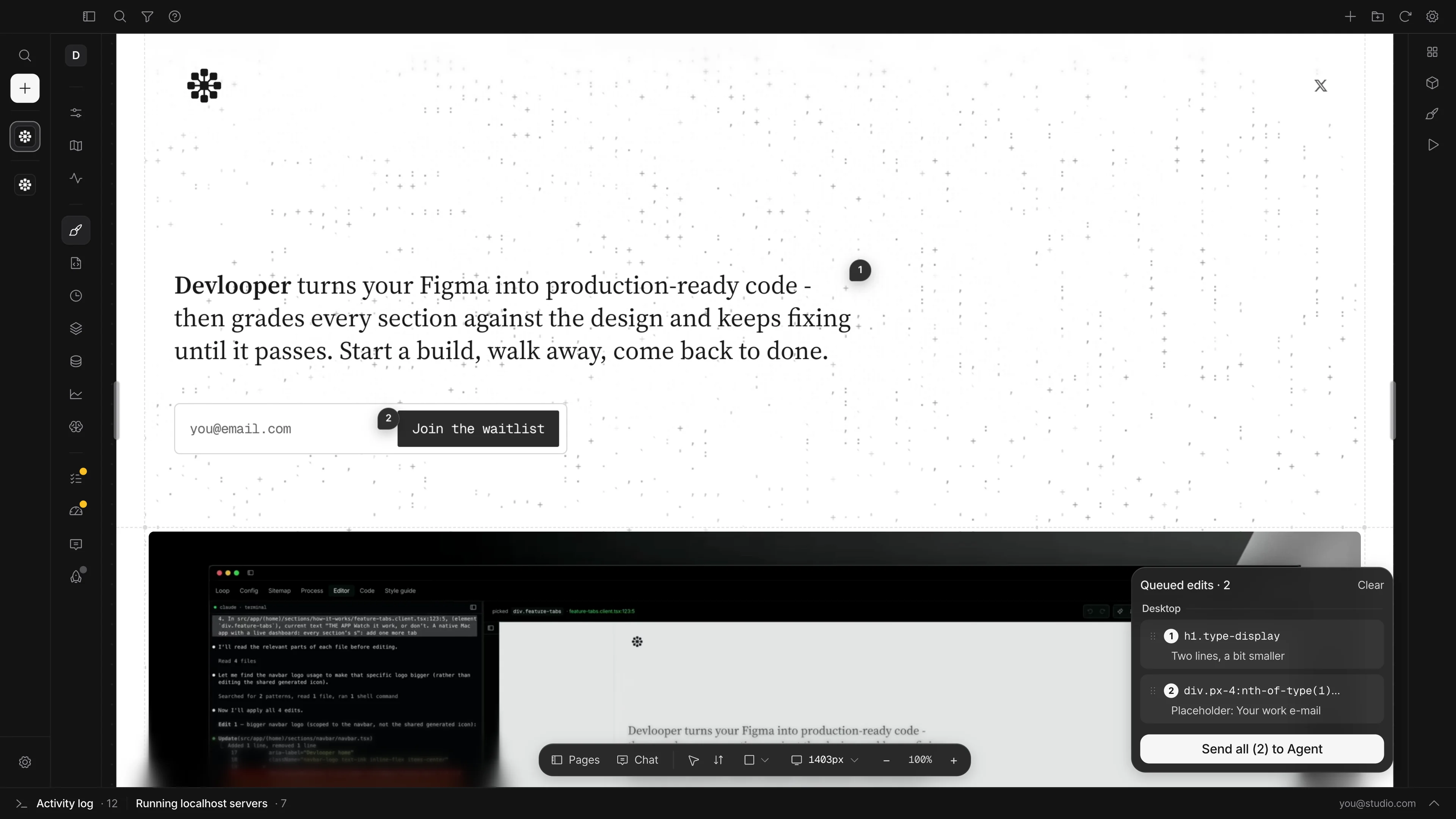
- Click an element on the page. A box opens beside it.
- Edit text changes words straight away, without Claude.
- For anything else, write what to change, for example "Make this heading two lines and a bit smaller", and click Send.
3. Queue several edits
- Write a note and press Enter. It joins Queued edits.
- Pick the next element and write its note. Repeat.
- Click Send all to Agent: one request, less of your plan.
4. Every screen size
Press 1, 2, 3 and 4 for desktop, tablet and phone. Fix what breaks the same way.
5. The panels
- Left: Pages, Layers (the page as a tree) and Assets (pictures and files).
- Right: Sections and variants, Components, Design tokens and Preview.
Next
Versions of a section on the canvas and Change the page in Layers. Full guide: Edit a page in Design.