GuidesTutorials
Versions of a section on the canvas
Step by step, ask for new designs of a section and pick one.
The canvas shows the page at every breakpoint, and new designs of a section beside it.
1. Open the canvas
In Design, open the view menu in the toolbar and choose Canvas: this page at every breakpoint. Two fingers pan; pinch or ⌘ + scroll zooms; ⇧1 fits everything.
2. Ask for versions
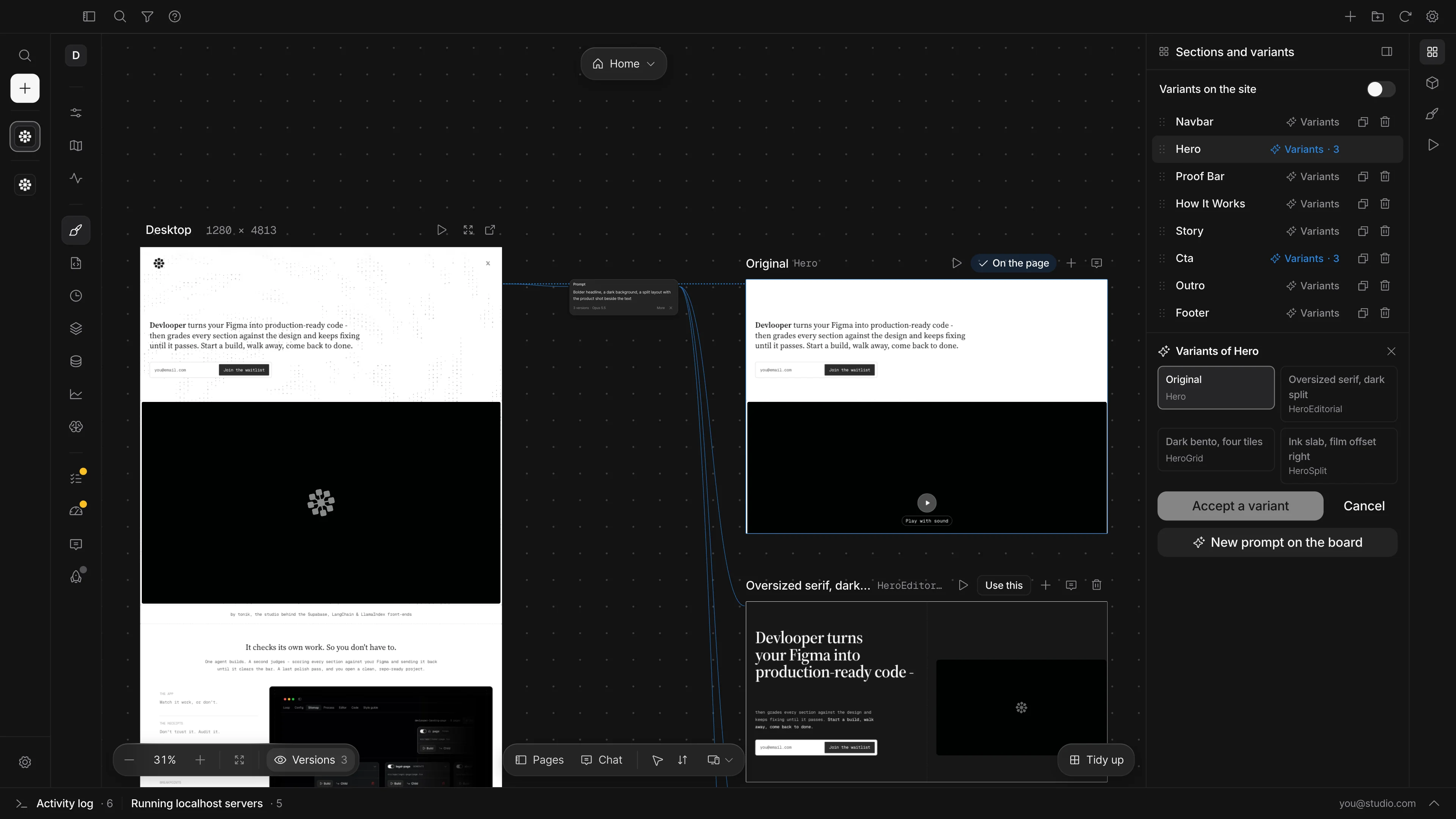
- Open Sections and variants on the right.
- Click Variants on a section, for example Hero. A prompt opens on the board.
- Write a direction, choose how many Versions, and click Generate. The cards appear beside the prompt, usually in under a minute.
3. Pick one
- Use this puts a version on the page.
- + shows it at another screen size.
- The bin deletes it.
4. Hide them
Versions in the zoom bar, or Hide the versions from the canvas, gives a clean view of the page. Variants on the section brings them back.
5. Sections
Drag a row in Sections and variants to move a section; Duplicate and the bin are on each row.
Next
Full guide: Canvas and versions.