Publish
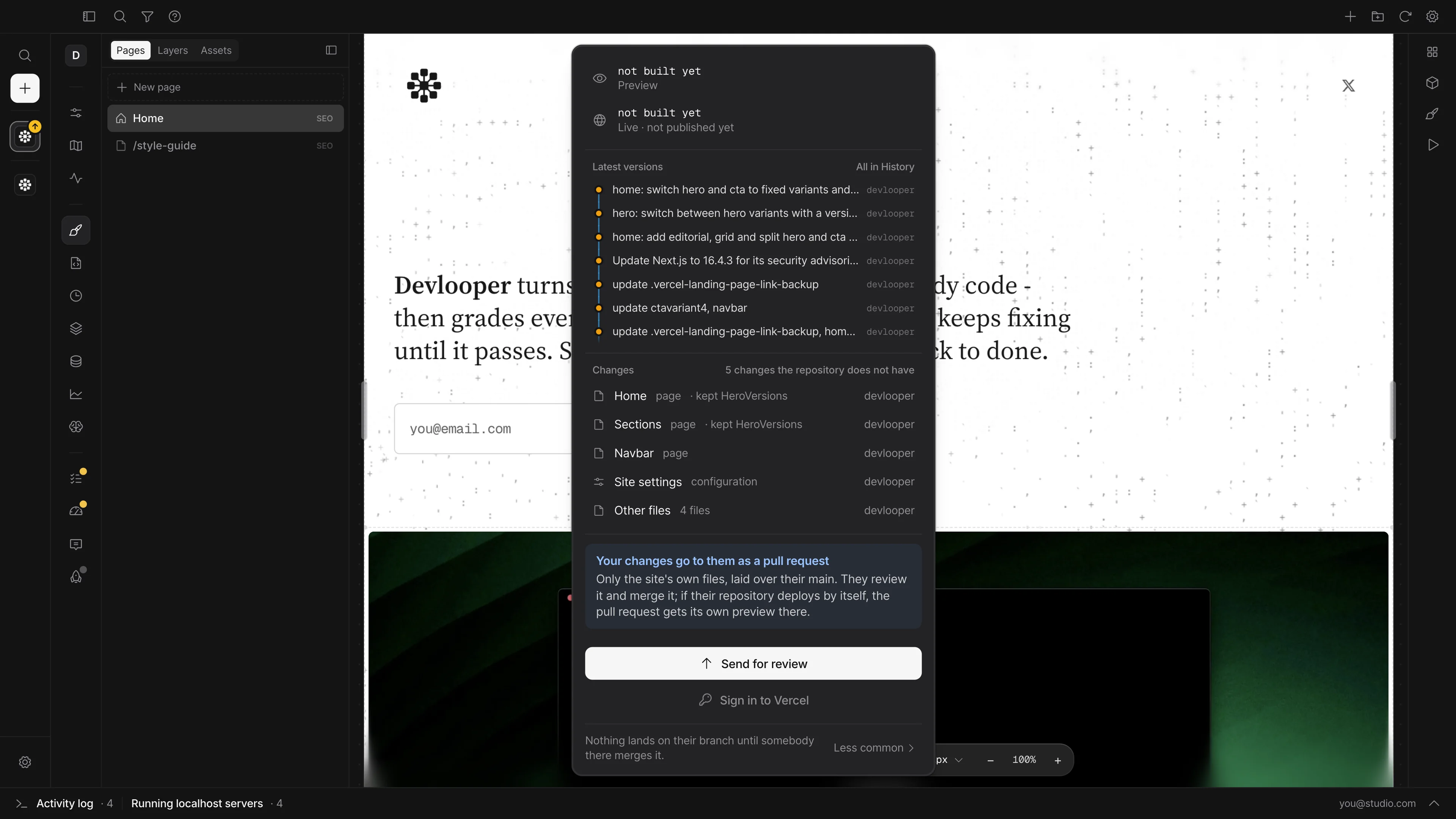
Step by step through the Publish panel: preview, live site, what changed and the next step.
Publishing puts the site online: GitHub keeps every version of the code, Vercel serves the site.
You need: GitHub connected. For the site to go online, Vercel connected.
1. Open Publish
Click Publish in the sidebar. The panel opens over the page.
2. Preview and live
- Preview is a private address: send it to your client to look at before anything is public.
- Live is the public site. Before the first publish both say not built yet.
3. What will go out
- Latest versions: the last saved versions of the site. All in History shows every one.
- Changes: what the repository does not have yet, page by page.
4. The next step
The panel always has one main button for whatever comes next: Publish, Update preview, or Send for review when the repository belongs to someone else and your changes go to them as a pull request.
If Vercel is not connected yet, Sign in to Vercel is the step before. Sign in once, and devlooper links the project.
5. Less common
Less common holds the rest: which accounts the project uses, the Vercel link, a teammate's work, and throwing away changes you do not want.
Next
Full guide: Publish a site.