GuidesTutorials
Change the page in Layers
Step by step, find any element in the page tree and change it with the keyboard or the mouse.
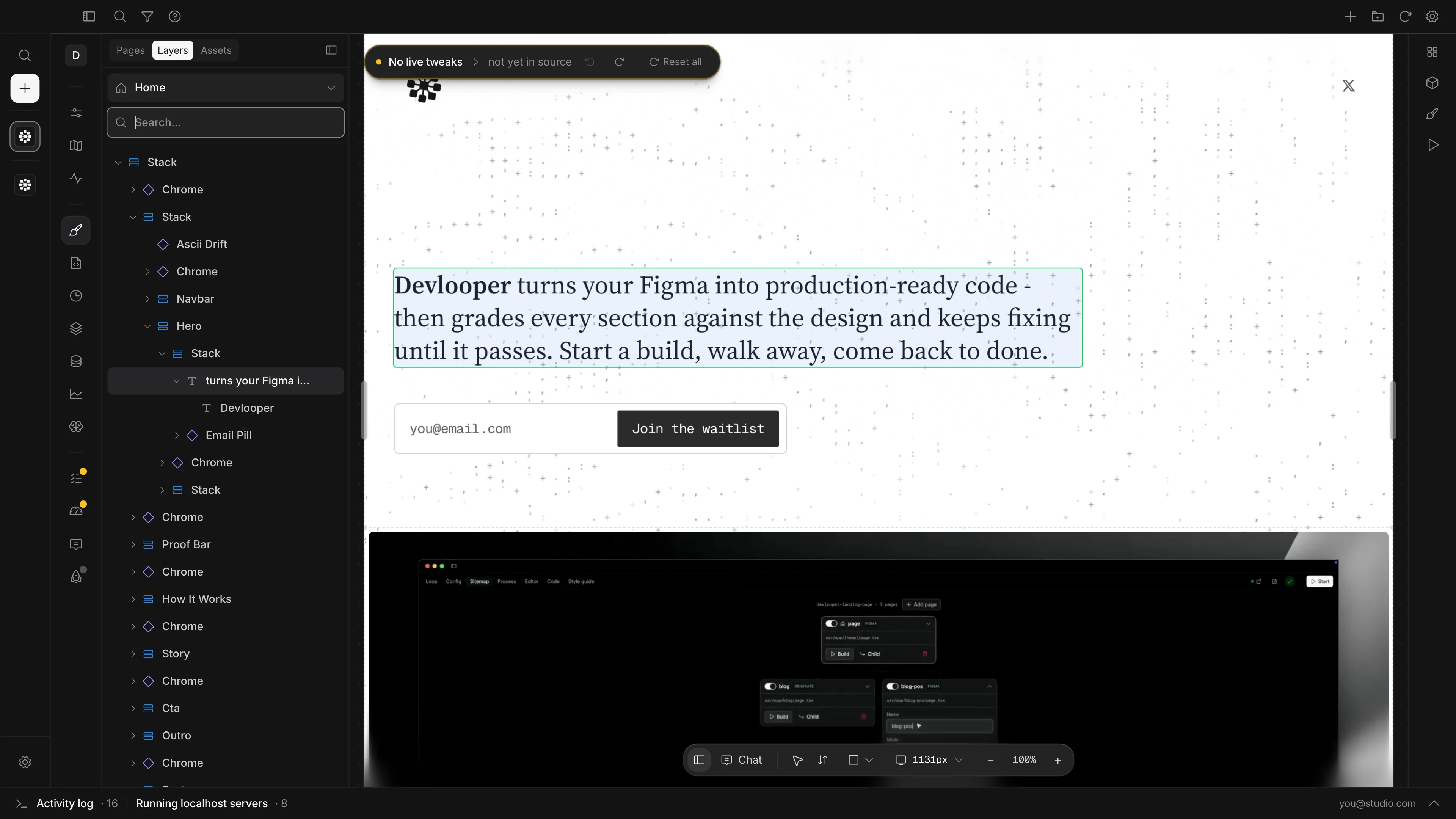
Layers shows the whole page as a tree, like Figma's layers or Webflow's navigator.
1. Open Layers
In Design, open the left panel and click Layers.
2. Find an element
Type in Search. Texts and buttons are named by their words, so search for what the page says.
3. Change it with the keyboard
Click a row to select it, then:
| Key | Does |
|---|---|
| ⌘D | Duplicate |
| ⌥↑ / ⌥↓ | Move up or down |
| ⌫ | Delete |
| ⌘Z | Undo |
4. Drag it
Drag a row; a line shows where it lands. Right-click a row for Duplicate, Cut, Delete, Hide on the canvas and more.
Next
Full guide: Change the page in Layers.